Drawings and documents the workshop can use
CSV lists: all plans. PDF documents: Pro and Studio. Machining files in the pack: Studio.
Every drawing, assembly sheet, label and cut sheet in PanelCraft is generated from the design, so it is always current and never retyped. One command writes the whole workshop pack to a folder, named in your document language.
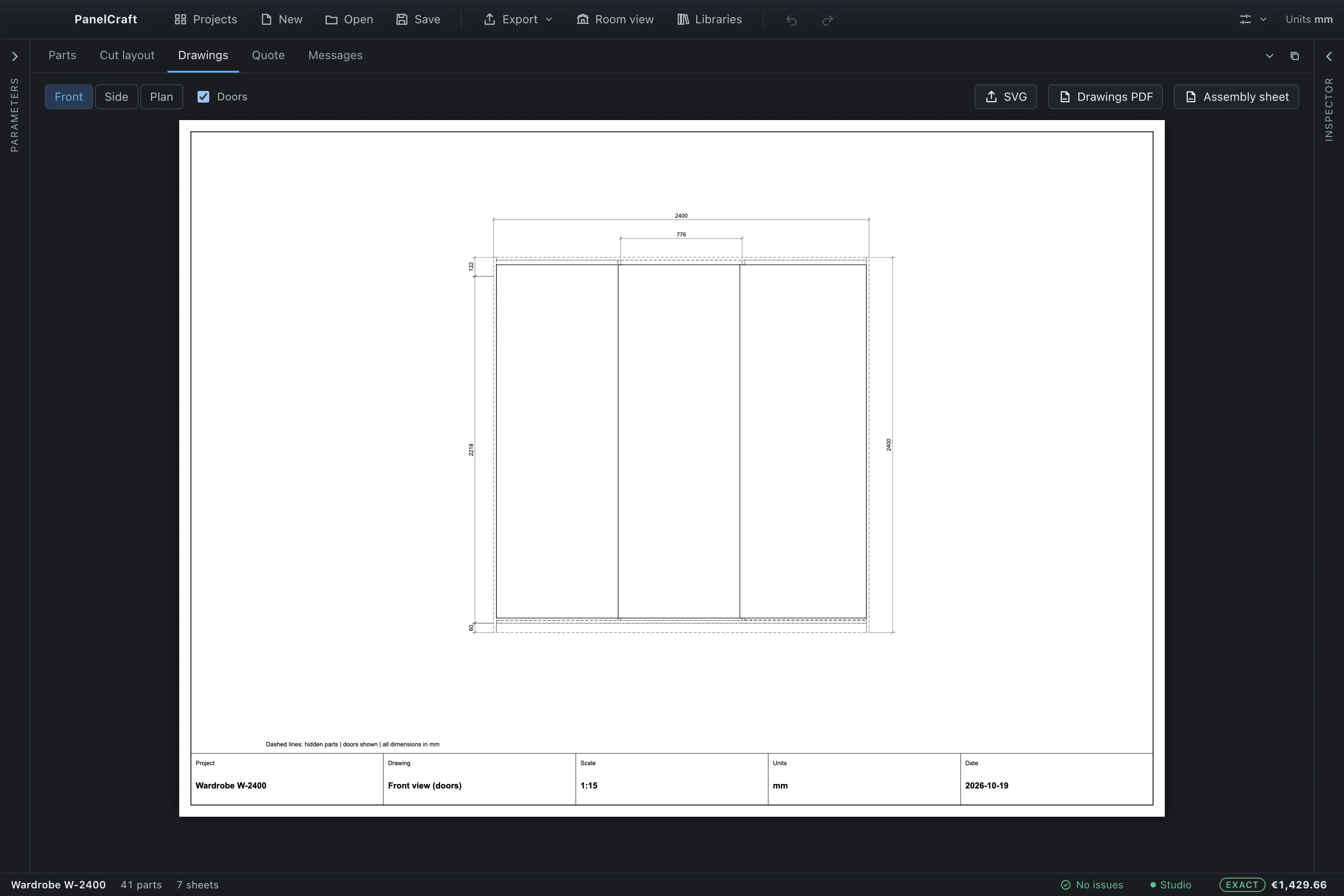
Dimensioned drawings at true scale
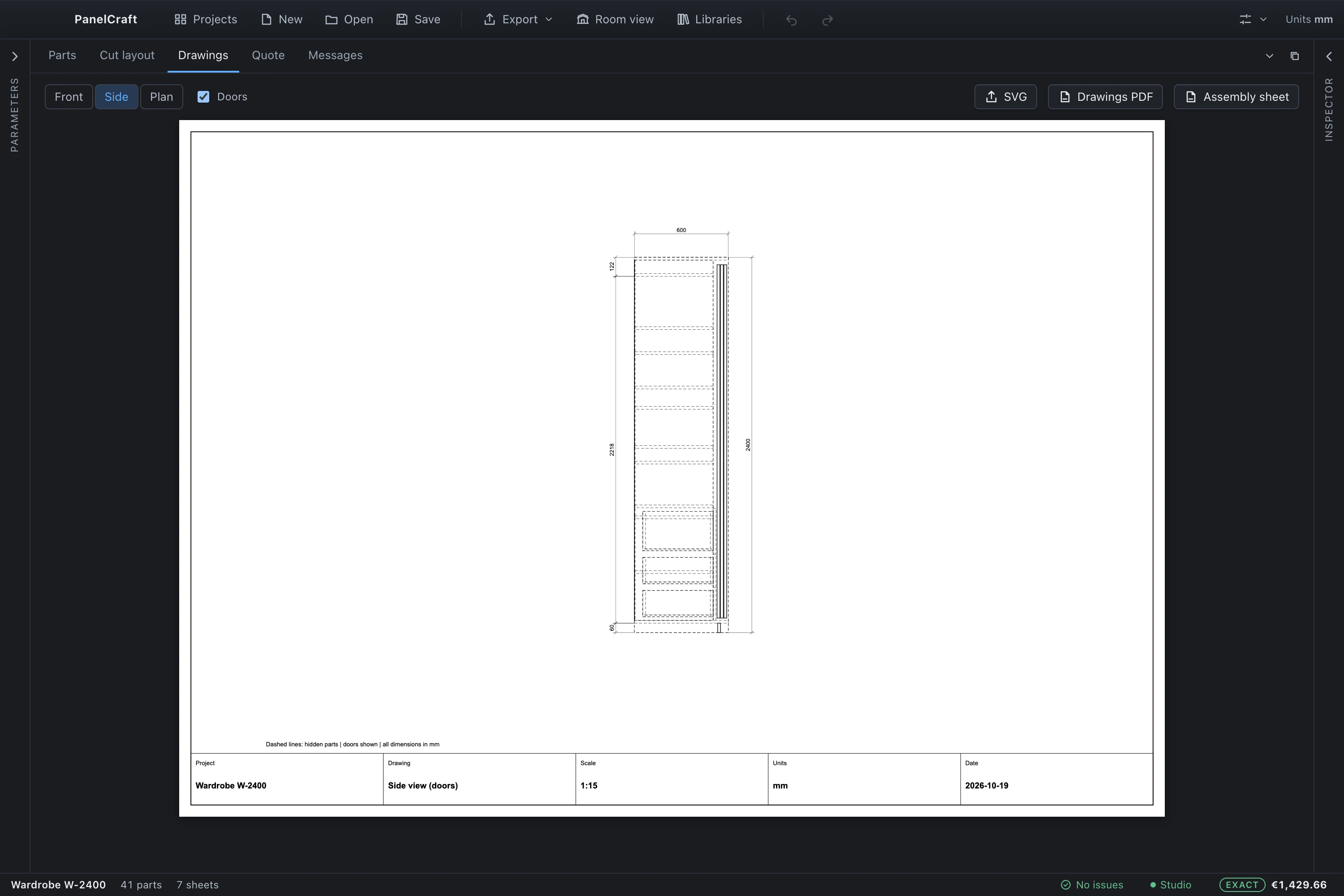
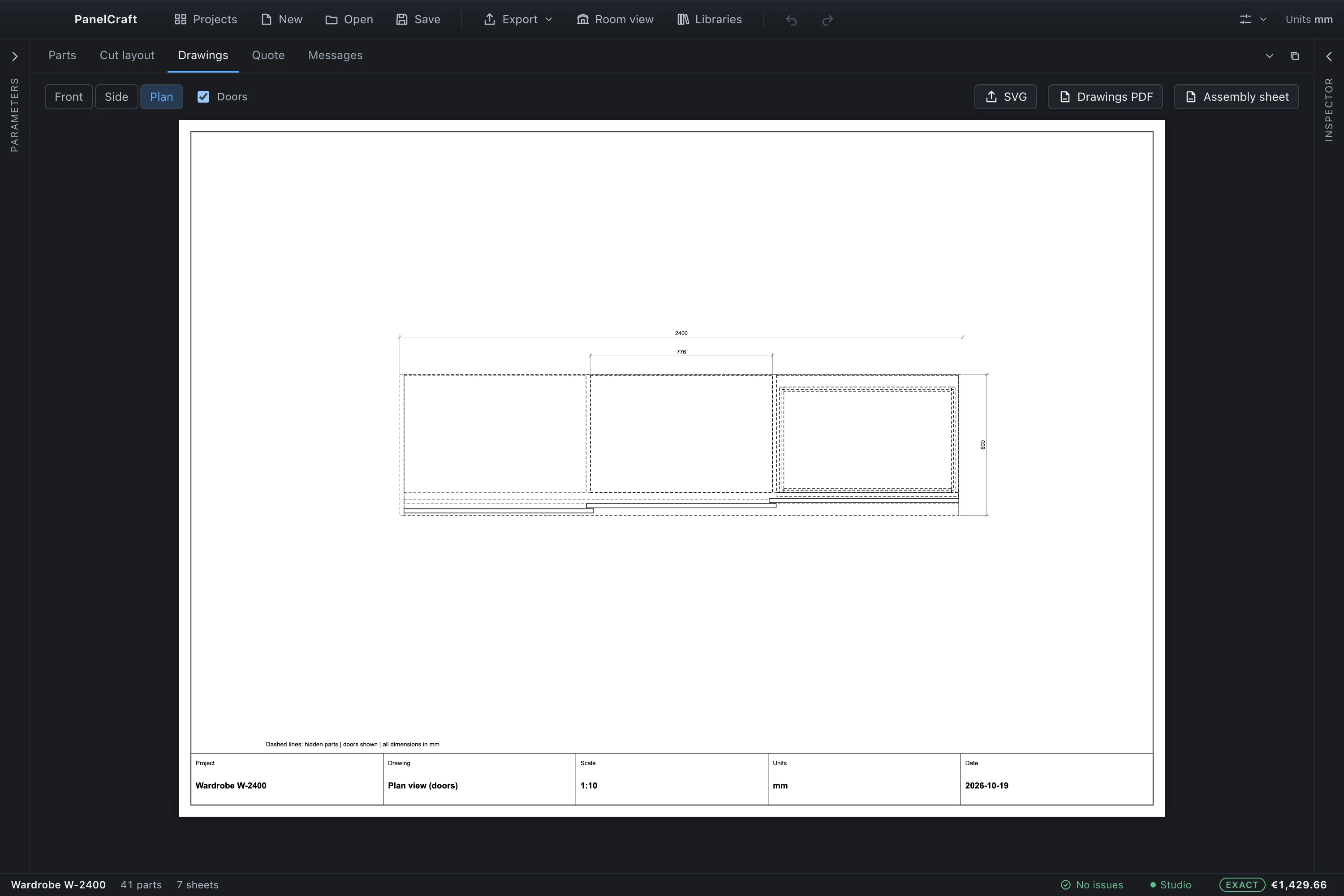
The Drawings tab offers Front, Side and Plan views. Each is an A3 landscape drawing whose scale is the smallest standard ratio that fits, from 1:1 up to 1:200, so a drawing printed at 100 % is really to scale. Visible parts are drawn solid and hidden parts dashed, and a Doors switch shows or hides the fronts.
Dimension lines give the overall width, height and depth, the clear width of each compartment, and a chain on the left with the plinth height and the shelf positions, which add up to the overall height. The title block states project, drawing, scale, units (millimetres) and date.
Rotated panels appear as rotated polygons in the plan view. Export a drawing as SVG for any vector tool, or all of them as one Drawings PDF.
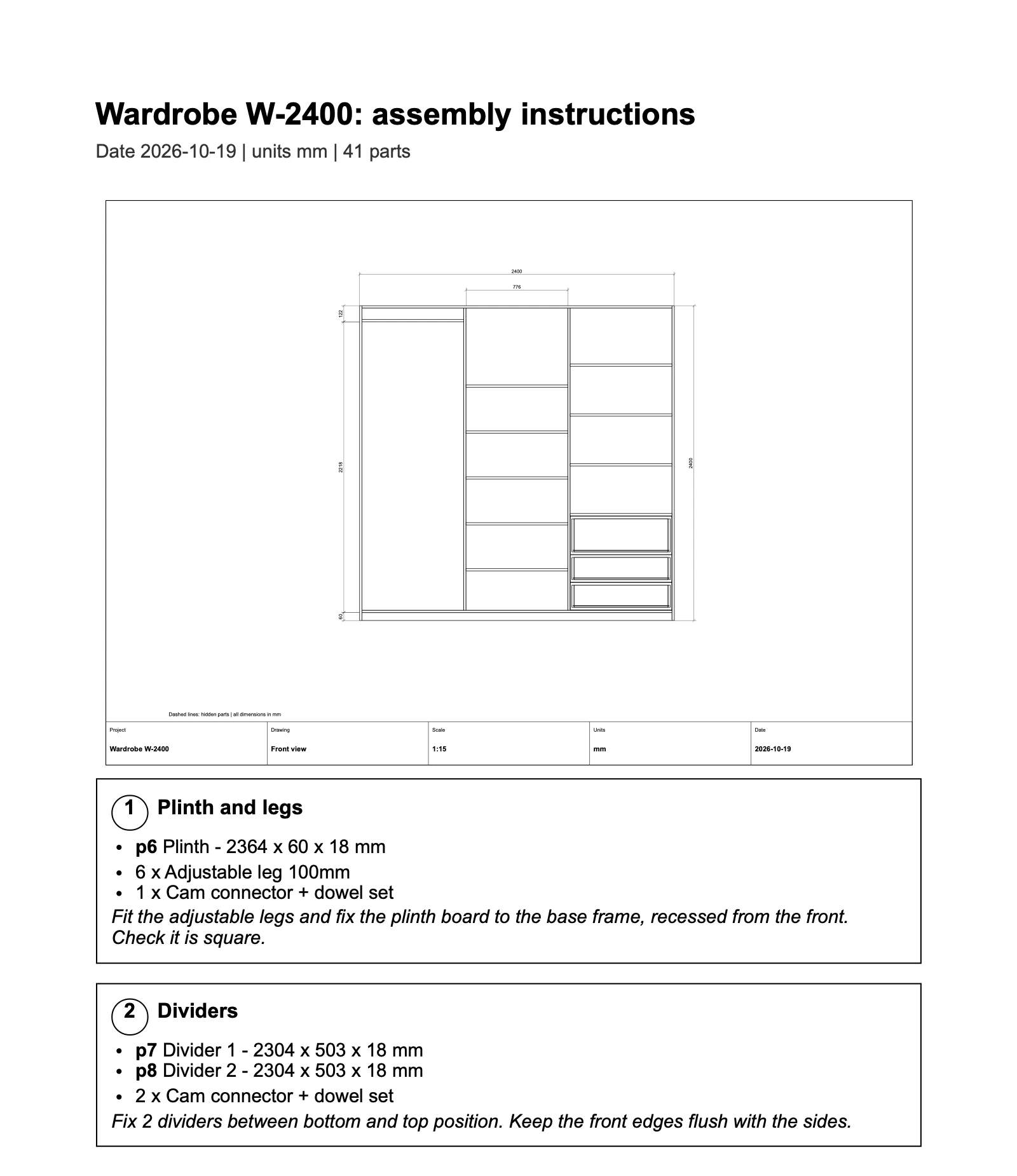
Assembly sheet with steps in order
The assembly sheet is a printable document with the front drawing and a card for each step. Steps follow the order you build in: plinth and legs, sides and bottom, dividers, shelves, back, top, drawers, doors and hinges, handles, and any other parts. Empty steps are left out.
Every part appears in exactly one step, and the hardware of each step is listed with its quantity. Connectors are split across steps by the number of joints they make, and the quantities add up to the derived totals, so the sheet agrees with the quote and the order list.
The sheet is self-contained and prints cleanly from the PDF export, in the document language of the project.
One label per physical panel
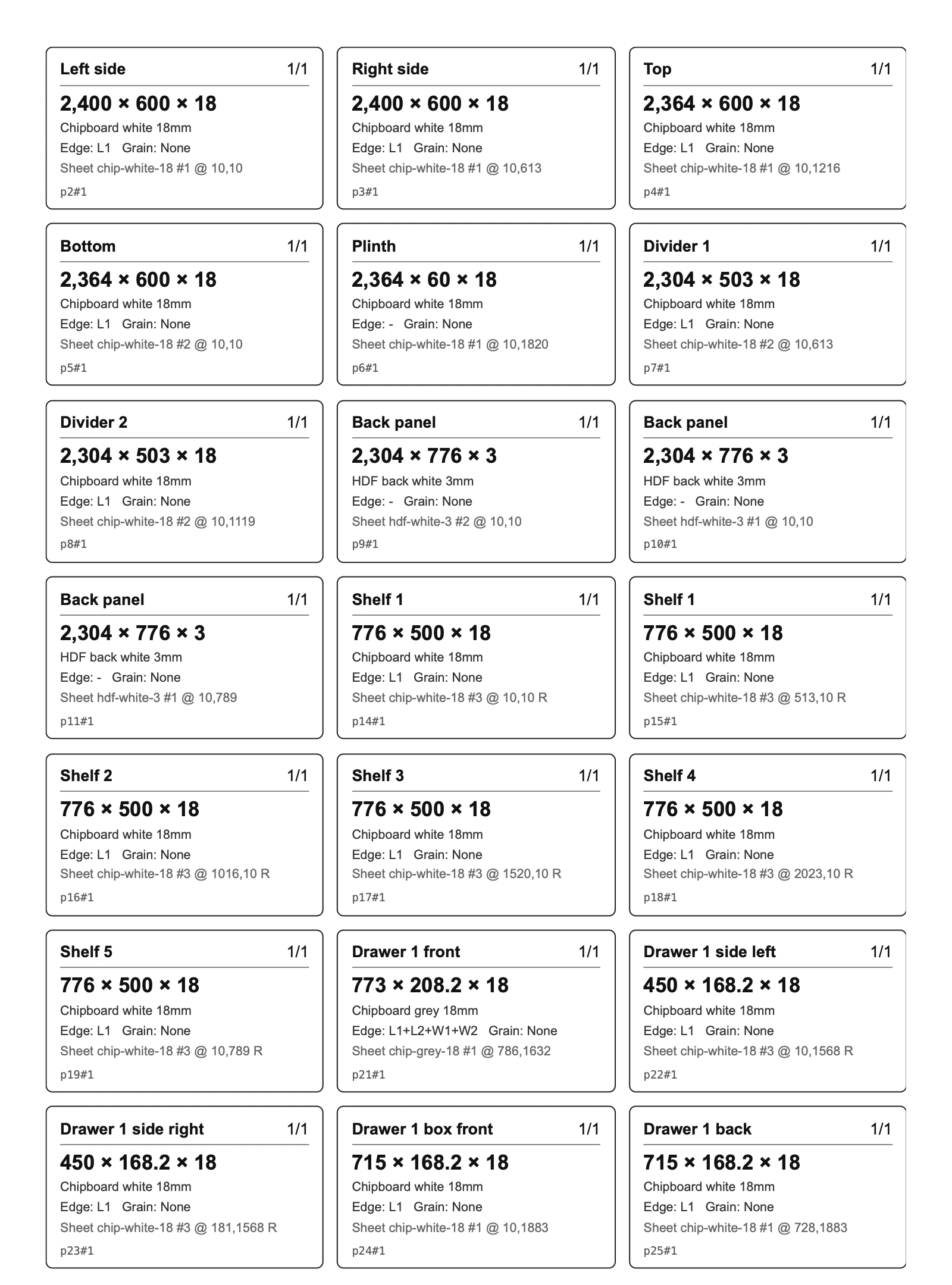
The labels document prints a label for every physical panel, not every part type: a part with a quantity of four produces four labels. Each shows the part name, its dimensions, the board, and which edges are banded, which is everything the person at the saw and the edge bander needs to identify a piece at a glance.
Labels are print-ready A4 pages generated in a hidden, script-free window. The same part ids appear on the cut sheets, in the parts list and in the machining files, so a piece can be followed from the sheet to the cabinet.
The workshop pack: eight files
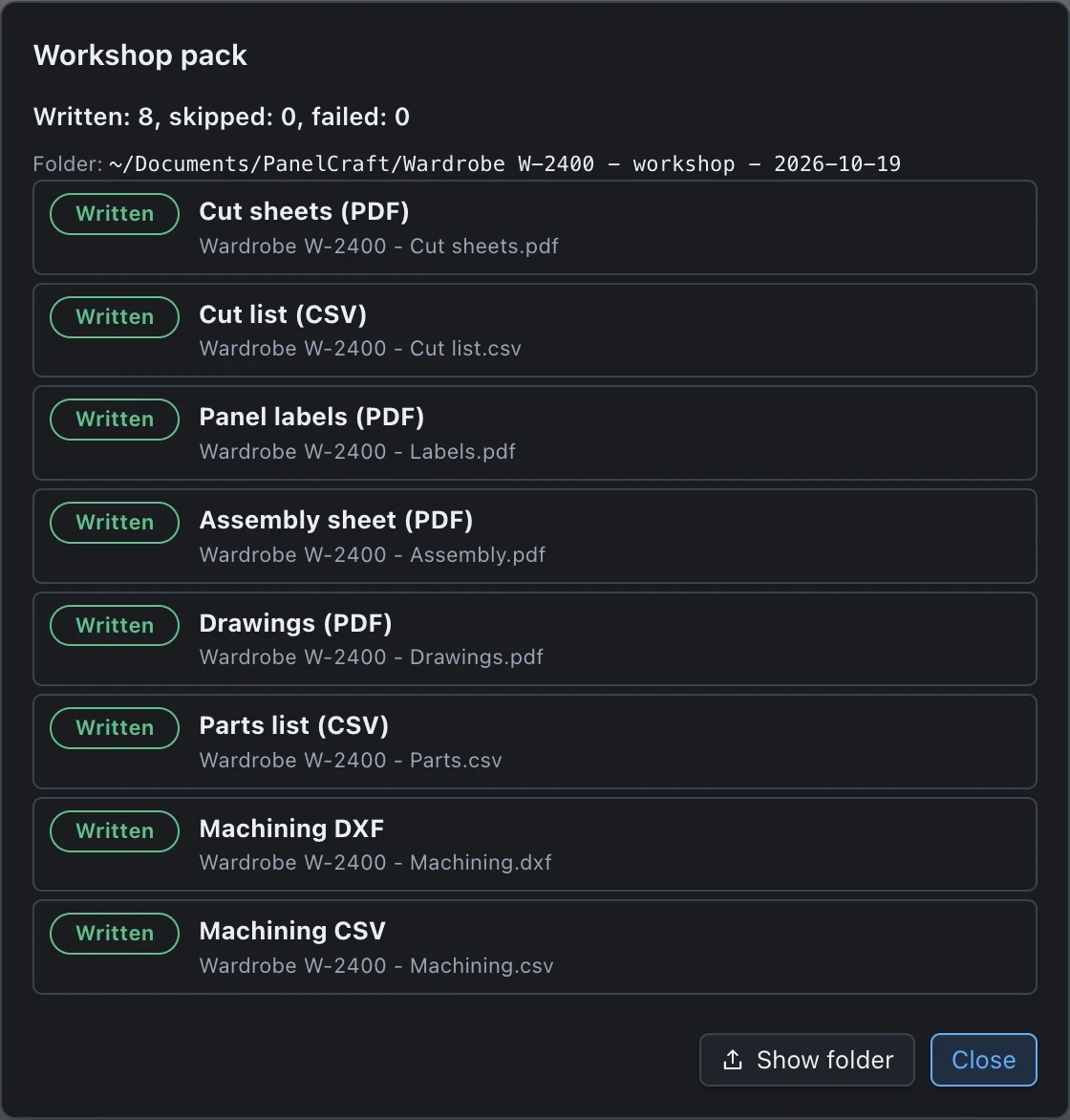
Export > Workshop pack writes everything the shop floor needs into one folder named with the project and the date, and reports each file as it is written. A dialog shows the result: written, skipped and failed counts, and a row per file.
The folder is created before the first file is written, and removed again if nothing could be written, so you never find an empty folder. Cancelling stops cleanly between files.
| File | Format | Plan |
|---|---|---|
| Cut sheets | Pro, Studio | |
| Cut list | CSV | All plans |
| Panel labels | Pro, Studio | |
| Assembly sheet | Pro, Studio | |
| Drawings | Pro, Studio | |
| Parts list | CSV | All plans |
| Machining DXF | DXF | Studio |
| Machining CSV | CSV | Studio |
A client pack for the quote talk
The Client pack bundles what you show a customer: a preview image of the design, the quote and the drawings. Like the workshop pack it reports every file and skips, with a reason, anything your plan does not include.
For a more visual conversation, the room view exports the design placed in the customer’s own photograph as an image or a one-page PDF with an optional quote summary. See Room view.
- Contents
- Preview image, quote PDF, drawings PDF.
- Plans
- Quote and drawings need Pro or Studio; the preview image is generated on every plan.
- Reporting
- Every file is listed as written, skipped (with the reason) or failed.
Six languages for screen and paper
The interface and the documents have independent language settings. The interface is available in English, Bosnian/Croatian/Serbian, German, French, Italian and Spanish, and so are the quote, labels, drawings and assembly sheet. File names follow the document language, so a German quote produces files named in German.
Numbers and dates follow the language too: a decimal comma everywhere except English, day-first dates, prices with a no-break space before the euro sign, and a narrow no-break space as the thousands separator in French. CSV imports accept both decimal separators.
Which plan includes which document
The CSV exports (cut list and parts list), the SVG sheets and the preview image are part of every plan. The PDF documents (quote, cut sheets, labels, assembly sheet, drawings) are part of Pro and Studio. The machining files in the workshop pack are part of Studio.
The 14-day trial includes all of them, so you can run a complete job through the pack before choosing a plan.
- Basic
- Cut list CSV, parts list CSV, SVG sheets.
- Pro
- Basic plus all PDF documents.
- Studio
- Pro plus machining DXF and CSV and room view.
Generate a workshop pack from your next design
Download PanelCraft for Windows or macOS and run a real job through it, from drawing to quote. The 14-day trial includes every Studio feature.
Questions first? Write to hello@panelcraft.store or see the FAQ.