Show the design in your customer’s room
Room view is part of the Studio plan and of the 14-day trial.
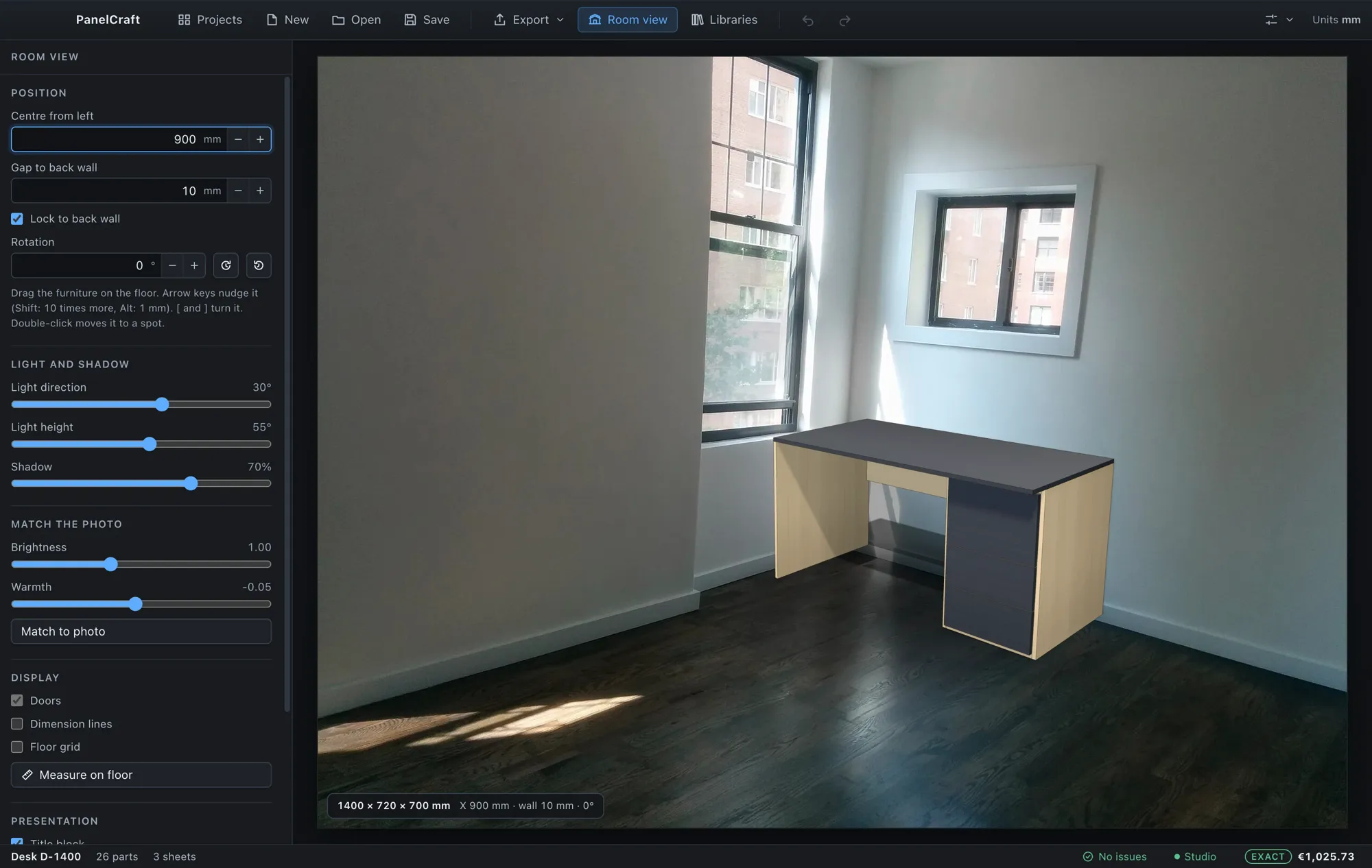
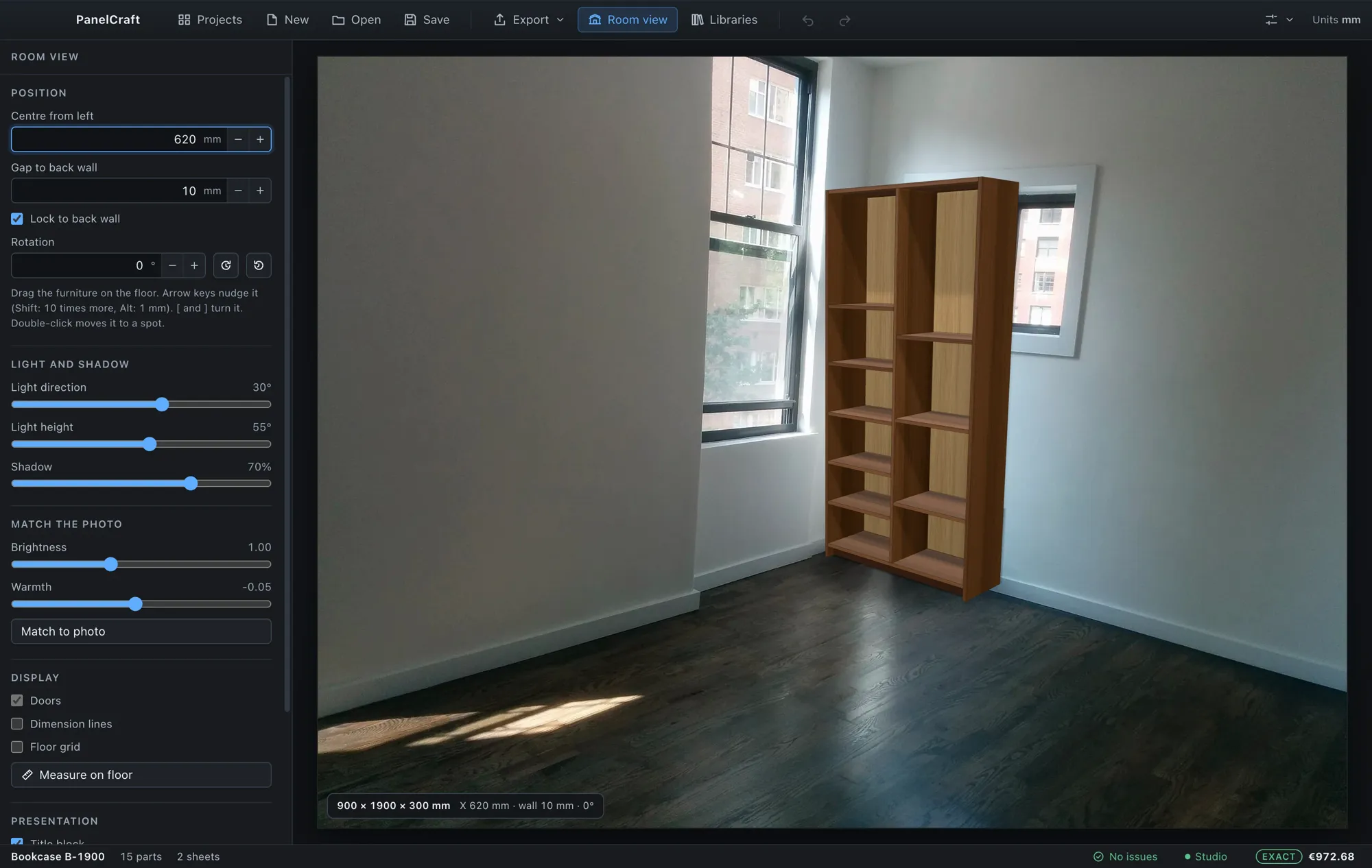
Room view places a PanelCraft design into a photograph of the customer’s room, to scale. You calibrate a camera from the floor, drag the piece into position, set the light, and present or export the picture. It is a presentation view, computed on your machine.

A picture the customer can judge
Drawings answer the workshop’s questions; a photograph answers the customer’s. Room view draws your furniture with the editor’s own 3D renderer, with the same materials, decors, handles and hardware, on a transparent canvas over the customer’s photo. Only the camera, the lights and a wall catching the shading are different, and they are set to match the photo.
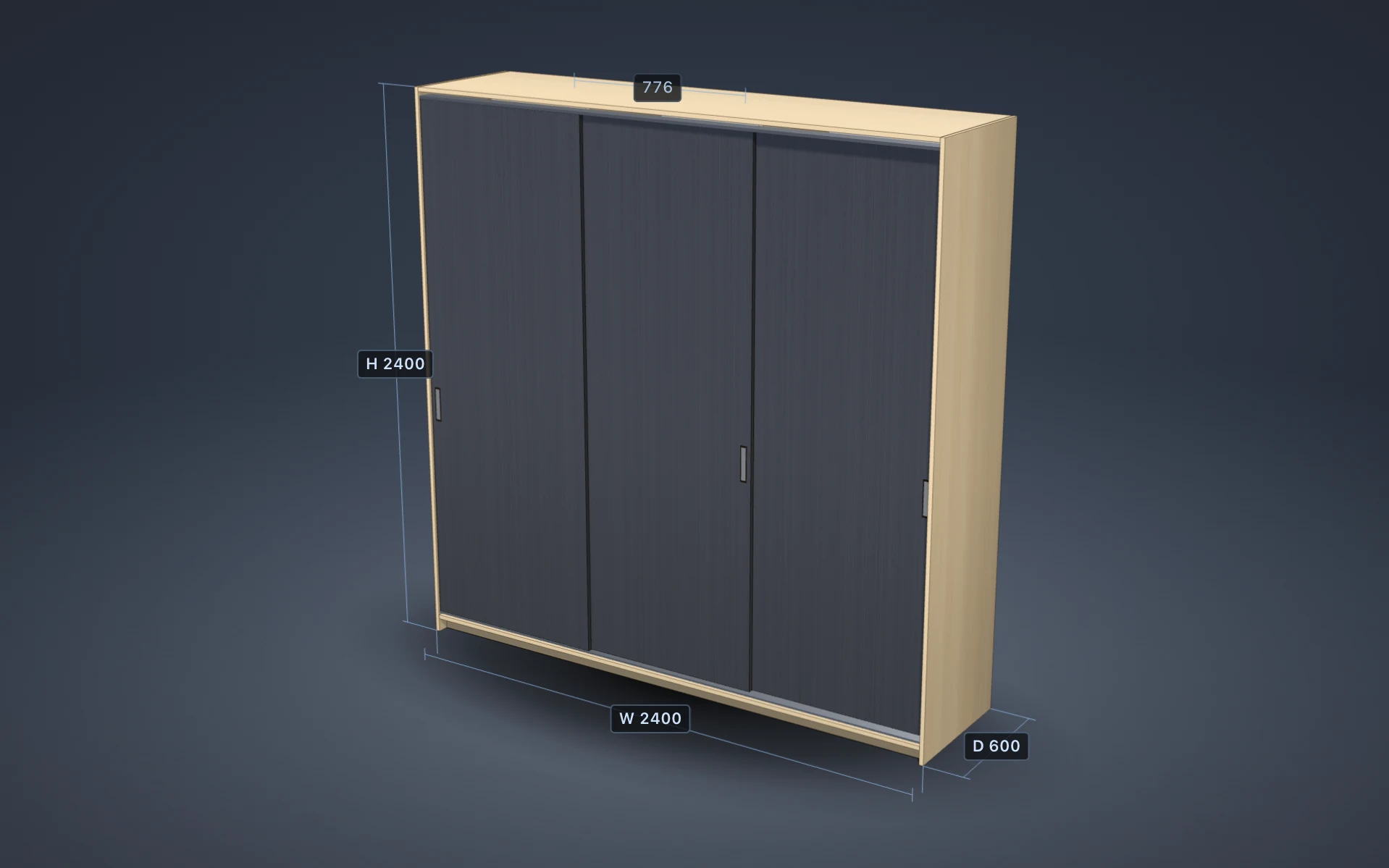
Because the furniture is the real model, a change of decor, width or door style in the editor shows up in the room straight away. You can open the doors to show the interior and turn the dimension lines on for the customer to read.
Calibrate the camera from the floor
The wizard asks for the photo, then for the four corners of a rectangle on the floor, clicked in order, with draggable handles, a magnifier loupe and undo; the arrow keys move a handle by one pixel, or ten with Shift. You enter the real width and depth of that rectangle and the gap to the wall. A check screen draws a 500 mm floor grid and the furniture outline at real size, and reports the camera height, the field of view and the fit error with warnings.
From the four corners PanelCraft derives a homography, the focal length from the orthogonality of the rectangle’s sides, the camera pose, and a polished result. An alternative method uses vanishing lines: two lines along the width, two along the depth, an origin and one known distance.
If a corner is clicked in the wrong order or a view is too frontal to measure, the wizard says so in plain words instead of producing a wrong camera.
| Method | You provide | Derived |
|---|---|---|
| Floor rectangle | Four corners, real width and depth | Focal length, camera pose, height, field of view |
| Vanishing lines | Two width lines, two depth lines, origin, one known distance | Camera from two vanishing points and a scale |
Place the piece on the floor, to scale
Drag the piece across the floor and its footprint follows the pointer. Arrow keys nudge it (Shift moves 100 mm, Alt 1 mm), square brackets rotate it, a double-click moves it to a spot, and the yaw field takes an exact angle. Lock to back wall snaps the back to the wall at the gap you set.
Millimetre readouts show the position, the wall gap and the rotation, and the dimension lines show width, height and depth. A floor measure tool lets you check a distance in the photo and correct the scale when it is off.
Everything is saved next to your project data and restored when you reopen the project: the photo, the calibration clicks, the sizes, the placement and the look. A missing or damaged photo shows a choose-the-photo-again state and keeps the settings.
- Move
- Drag on the floor; arrow keys nudge (Shift 100 mm, Alt 1 mm).
- Rotate
- Square brackets, or type the yaw angle.
- Wall
- Lock to the back wall with a gap in millimetres.
- Doors
- Shown or hidden to reveal the interior.
- Saved
- Photo, calibration, placement and look return when the project reopens.
Light and shading that sit in the photo
Set the light direction, the light height and the shading strength. The shading is soft, with a contact shading on the floor and the wall, so the piece sits in the room instead of floating over it.
Brightness and warmth adjust the furniture to the photo, and Match to photo suggests values from the photo’s exposure and colour. The lighting is a directional light plus the editor’s environment; it is a good match for a presentation, not an estimate of every light in the photograph.
| Control | Effect |
|---|---|
| Light direction and height | Where the key light comes from |
| Shading | Strength of the soft and contact shading |
| Brightness and warmth | Match the furniture to the photo |
| Match to photo | Suggests brightness and warmth from the photo |
Export an image or a one-page PDF
Export a PNG or JPEG at the stored photo resolution (up to 3200 pixels on the long side) with an optional title block carrying the name, the dimensions and the date. Or export a PDF presentation page in A4 landscape with an optional quote summary, which goes through the same PDF flow as the other documents.
The result is a file you can attach to an email or print for the customer meeting.
- Image
- PNG or JPEG, up to 3200 px on the long side, optional title block.
- One A4 landscape page, optional quote summary.
- Credit
- The sample room photographs on this site are by aismallard, Wikimedia Commons, CC BY-SA 3.0.
How accurate it is
The calibration is tested against synthetic rooms with a known camera. With no noise the focal length is recovered to within a millionth and the camera position within 0.01 mm. With clicks that are off by 0.3 pixels the width scale is wrong by at most 0.68 % and the depth scale by about 1.1 %. In a test through the real user interface, a 1800 × 2400 mm wardrobe came out 272 pixels wide against an expected 273.5.
In a real photo the result depends on how precisely you click the floor corners and how well the floor rectangle is known, which is why the wizard shows the fit error and a measure tool.
| Condition | Result |
|---|---|
| No click noise | Focal length within 1e-6 relative; camera position within 0.01 mm |
| Click noise 0.3 px | Width scale error at most 0.68 %, depth about 1.1 % |
| Through the user interface | 1800 mm wardrobe: 272 px against 273.5 px expected |
Offline: the photo stays with you
Room view runs entirely on your computer with no external service. The photo is read through a native open dialog, validated by its content (PNG, JPEG or WebP; other formats are refused), copied at most 10 MB into your application data folder, and never uploaded.
Each project keeps its own photo, calibration and placement, so you can come back to a customer’s room and continue where you stopped.
- Formats
- PNG, JPEG, WebP, checked by content.
- Storage
- A downscaled copy of at most 10 MB in the application data folder.
- Network
- None. No photo leaves the computer.
The program in pictures
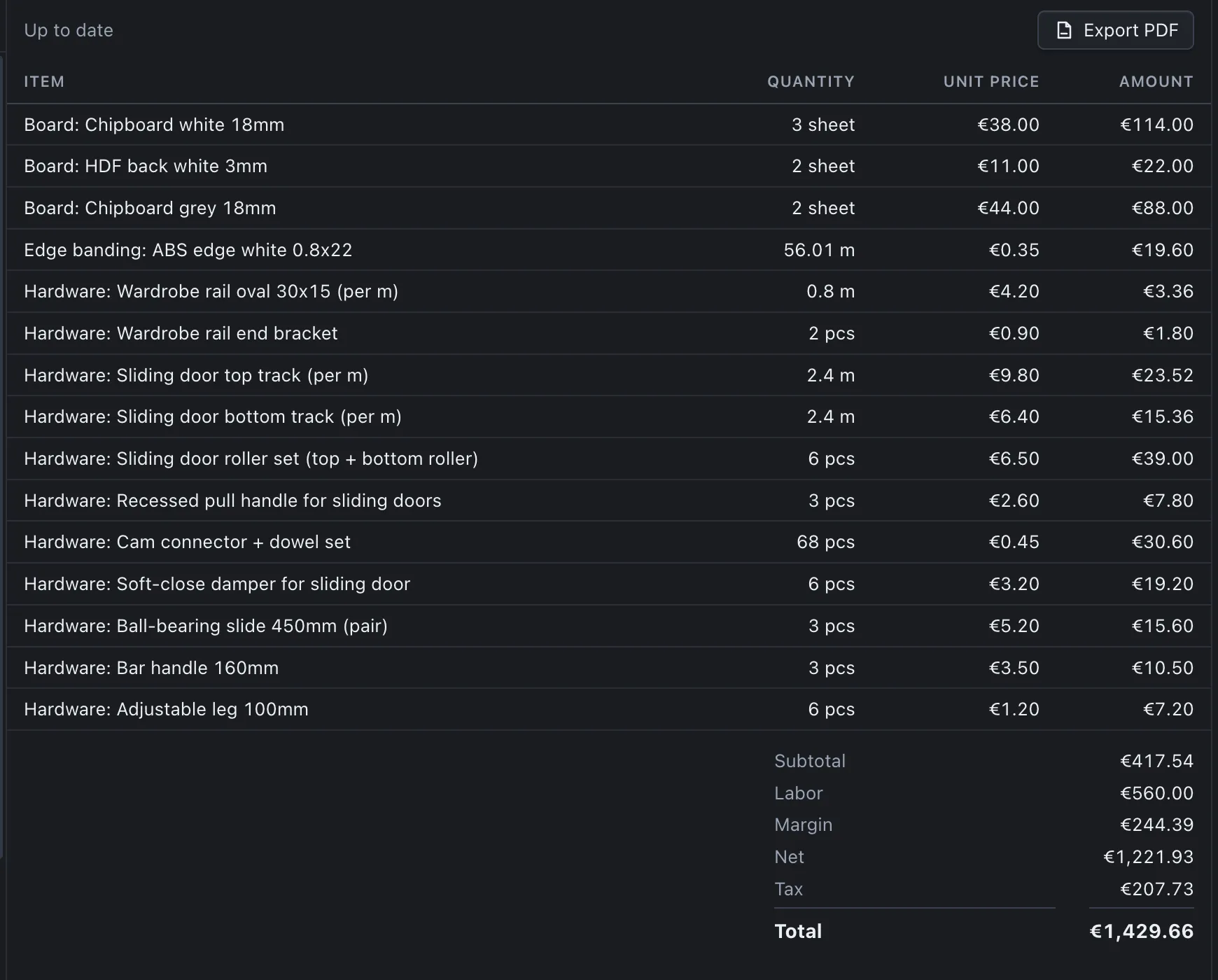

Show your next piece in the customer’s room
Download PanelCraft for Windows or macOS and run a real job through it, from drawing to quote. The 14-day trial includes every Studio feature.
Questions first? Write to hello@panelcraft.store or see the FAQ.