Machining files in neutral DXF and CSV
Machining export is part of the Studio plan and of the 14-day trial.
PanelCraft turns the cut layout into machining data per sheet: part contours, cable holes, hinge cups and optional shelf-pin holes, written as DXF R12 and as CSV. They are standard formats that cutting services and CAM software read, and they do not depend on a machine vendor.

From cut layout to machine geometry
A cutting service or a CNC operator works from sheets, not from furniture. PanelCraft takes the nested sheets and writes, for each one, the outline of every part in sheet coordinates together with the holes to be drilled in it. Positions already include the trim and the kerf from the optimiser, and the contours are the exact part geometry.
The export is deliberately neutral. It contains geometry and operations, with a face and a depth for each hole, and leaves tool choice, drilling order and the machine’s own conventions to the CAM software or the operator who reads the file.
Before anything is written, the dialog shows a summary: the number of sheets, part contours, through holes, hinge cups, shelf-pin holes and grooves that will be exported. You see exactly what the file will contain.

The operations
Part contours are closed polylines for every placed part, with the true outline for shaped parts. Through holes come from the cable holes you place in panels, dropped with a message if a circle does not fit inside the outline.
Hinge cups are bored in doors. The count per door follows the hinge rule by door height, the first and last hinge sit a set distance from the door ends (reduced to a quarter on a short door), and the cup centre sits at the cup distance from the hinge-side edge. Flip-up and flip-down doors get no cups because their hinges run along the top or bottom edge.
32 mm system holes drill shelf-pin rows in sides and dividers: 5 mm holes, 8 mm deep by default, every 32 mm starting 37 mm from the front and the rear. Every interval between the horizontal carcass panels gets its own rows from a common origin, so neighbouring sides and dividers have holes at the same heights. These rows are switched off until you ask for them.
| Operation | Default | Notes |
|---|---|---|
| Part contour | on | Every placed part, true outline for shaped parts. |
| Through hole | on | Cable holes, full board thickness. |
| Hinge cup | 35 mm × 12.5 mm | Centre 21.5 mm from the door edge; first and last hinge 100 mm from the ends. |
| Shelf-pin hole | off; 5 mm × 8 mm | Pitch 32 mm, setback 37 mm, margin 64 mm; both faces of dividers. |
The DXF file
The DXF is AC1009 (R12), the version every CAD and CAM package reads. Sheets are laid side by side with a 200 mm gap, so one file holds the whole job. Contours are closed polylines written counter-clockwise, holes are circles, and each sheet has a border.
Layers carry the meaning. CUT_<sheet> holds the contours of one sheet, SHEET the borders, LABELS the part ids, and drill layers are named by diameter, depth and face: a 35 mm hinge cup 12.5 mm deep on the bottom face is DRILL_D35_Z12P5_BOTTOM, and a 5 mm, 8 mm deep shelf-pin hole on the top face is DRILL_D5_Z8_TOP. Layer names use only capital letters, digits and _$-, are limited to 31 characters, and are made unique even when two materials would collide.
| Layer | Contains |
|---|---|
| CUT_<sheet> | Closed contour polylines of the parts on that sheet |
| SHEET | Sheet borders |
| DRILL_D<diameter>_Z<depth>_<TOP|BOTTOM> | Circles for holes and cups, one layer per size and face |
| LABELS | Part ids as text |
The CSV file
The CSV lists one row per operation, including the contour, so a script or a spreadsheet can read the whole job. There is deliberately no comment row above the header, because that would break CSV parsers; the conventions are stated here and in the dialog.
The delimiter is a semicolon. A decimal setting writes numbers with a point or a comma, so decimal-comma spreadsheets such as German or Bosnian Excel read them as numbers. Text cells that begin with a formula character are neutralised, and numbers are written with two decimals.
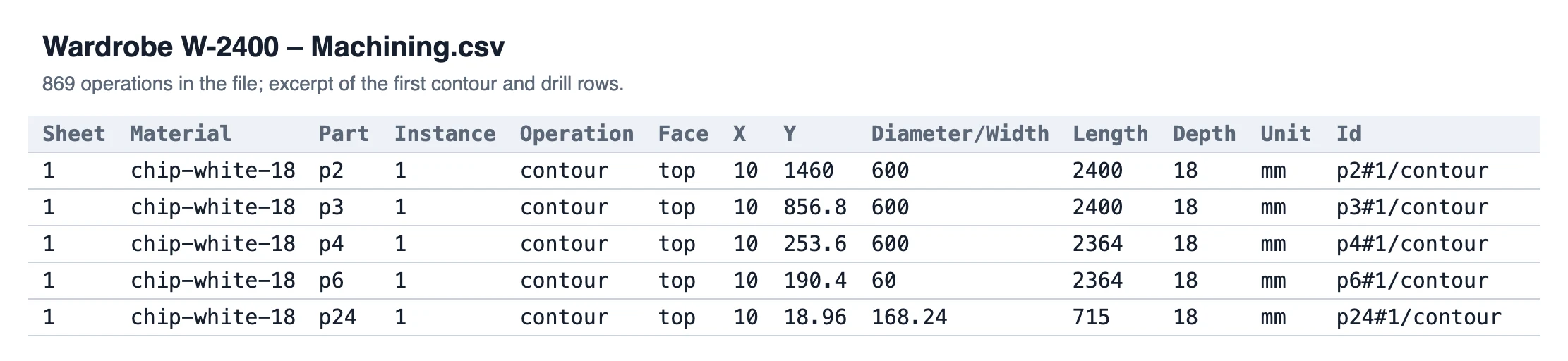
- Columns
- Sheet; Material; Part; Instance; Operation; Face; X; Y; Diameter/Width; Length; Depth; Unit; Id
- Unit
- Millimetres (mm column)
One coordinate frame for both files
Both files use the same frame: the origin is the bottom-left corner of the sheet, X runs along the sheet length and Y runs up. The editor draws sheets with Y downward, so the export converts, and mixing the DXF with the CSV never mirrors a part.
A turned part is a pure 90 degree rotation, never a mirror. Faces follow one rule: "top" is the face seen from above when the part lies unrotated on the sheet drawing, and the other face is "bottom". Left and right sides are mirror images, so their inner faces are on opposite faces, and hinge cups, which are bored from the rear of a door, are on the bottom face.
Contour rows give the lower-left corner of the placed part with its width, length and thickness; hole rows give the centre, the diameter and the depth.
- Origin
- Bottom-left corner of each sheet.
- Axes
- X along the sheet length, Y up.
- Rotation
- Pure 90° rotation of the part, never mirrored.
- Faces
- Top is the face seen from above on the unrotated drawing; hinge cups are on the bottom face.
Settings you can change, and remember
The dialog edits cable holes, 32 mm system holes (diameter, depth, pitch, setback and margin under Advanced), hinge cups (diameter, depth, distance from the edge, margin from the door ends) and the CSV decimal. Values are range-checked, and your choices are remembered for next time.
Back-panel grooves are available as a reference option for parametric cabinets with an inset back. They are off by default and the dialog asks you to confirm before exporting them.
- Hinge cups
- Diameter, depth, centre distance from the door edge, margin from the door ends.
- System holes
- Diameter, depth, pitch (32 mm), setback from the front, margin.
- CSV
- Decimal point or comma.
- Remembered
- Settings are validated and saved for the next export.
No export of a wrong file
If a part instance has no sheet, or a placement does not match its part, the export shows a blocking error and is disabled; the application also refuses on its own side, and nothing is written. Warnings such as a hole that falls outside its part, a hinge margin that was reduced or a depth that was clamped are listed in the dialog.
The usual export guard applies: errors in the design block the export, and the cut layout must belong to the current design, so a file never describes an older version of the piece.
| Condition | Result |
|---|---|
| Part instances without a sheet | Export disabled, nothing written |
| Placement does not match its part | Export disabled, nothing written |
| Design has errors | Export blocked until fixed |
| Cut layout is out of date | Export waits for the current layout |
Part of the workshop pack
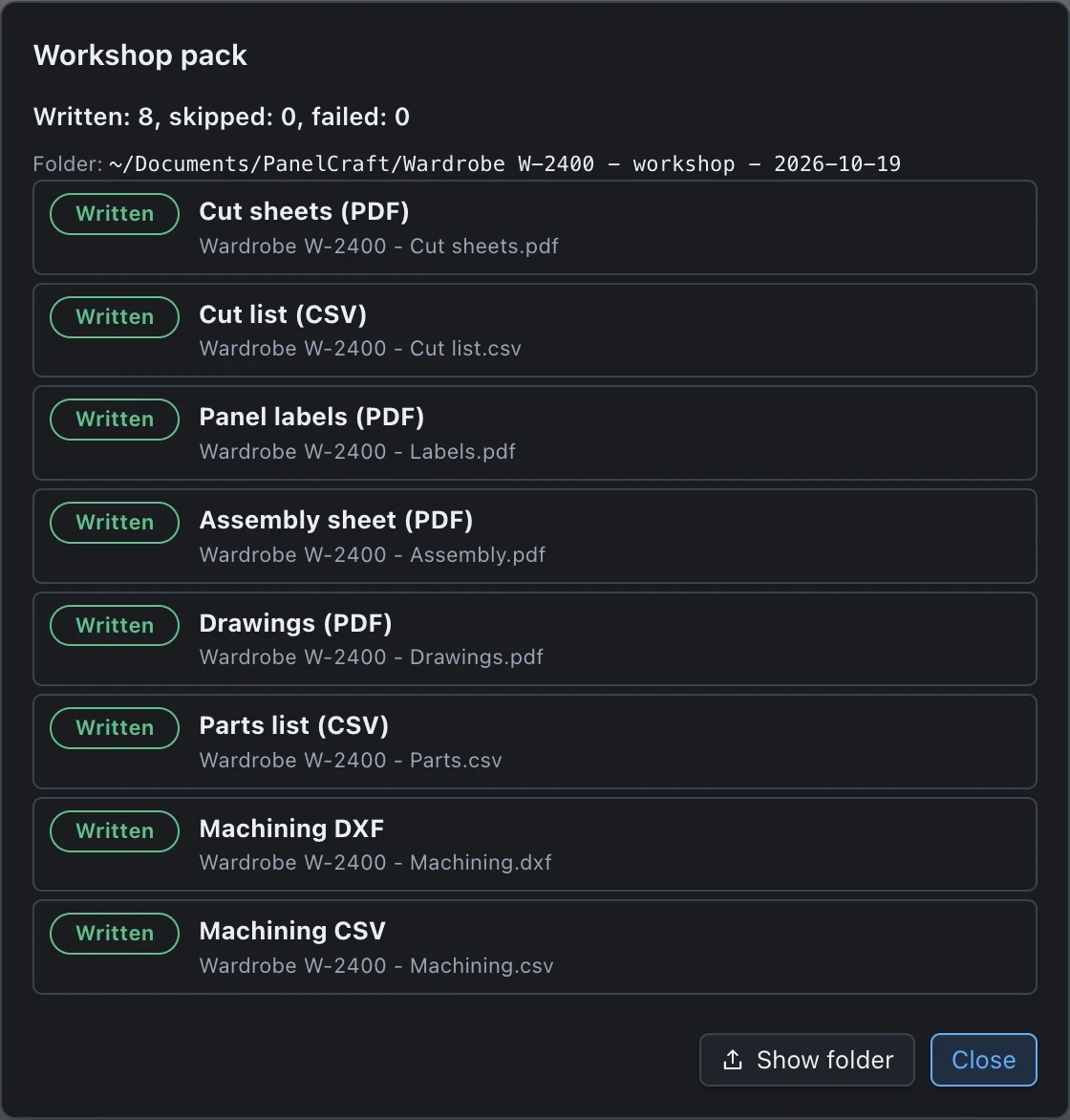
On the Studio plan, the workshop pack writes the machining DXF and CSV next to the cut sheets, labels, assembly sheet, drawings and parts list. Everything uses the same part ids, so a part on a sheet drawing, a label and a contour in the DXF are the same piece.
Send the DXF to your cutting service, load it into your CAM, or open it in any CAD to check a sheet before it goes to the machine. The file format is open and the geometry is plain, which is the point.
Export machining files from your next design
Download PanelCraft for Windows or macOS and run a real job through it, from drawing to quote. The 14-day trial includes every Studio feature.
Questions first? Write to hello@panelcraft.store or see the FAQ.