User guide: from first project to workshop pack
How to get from a blank project to a quote and a workshop pack. The guide follows the order you work in: start, draw, choose materials, cut, price, export, and set the language.
Written for PanelCraft on Windows and macOS. Keyboard shortcuts use Ctrl on Windows and Cmd on macOS.
Getting started
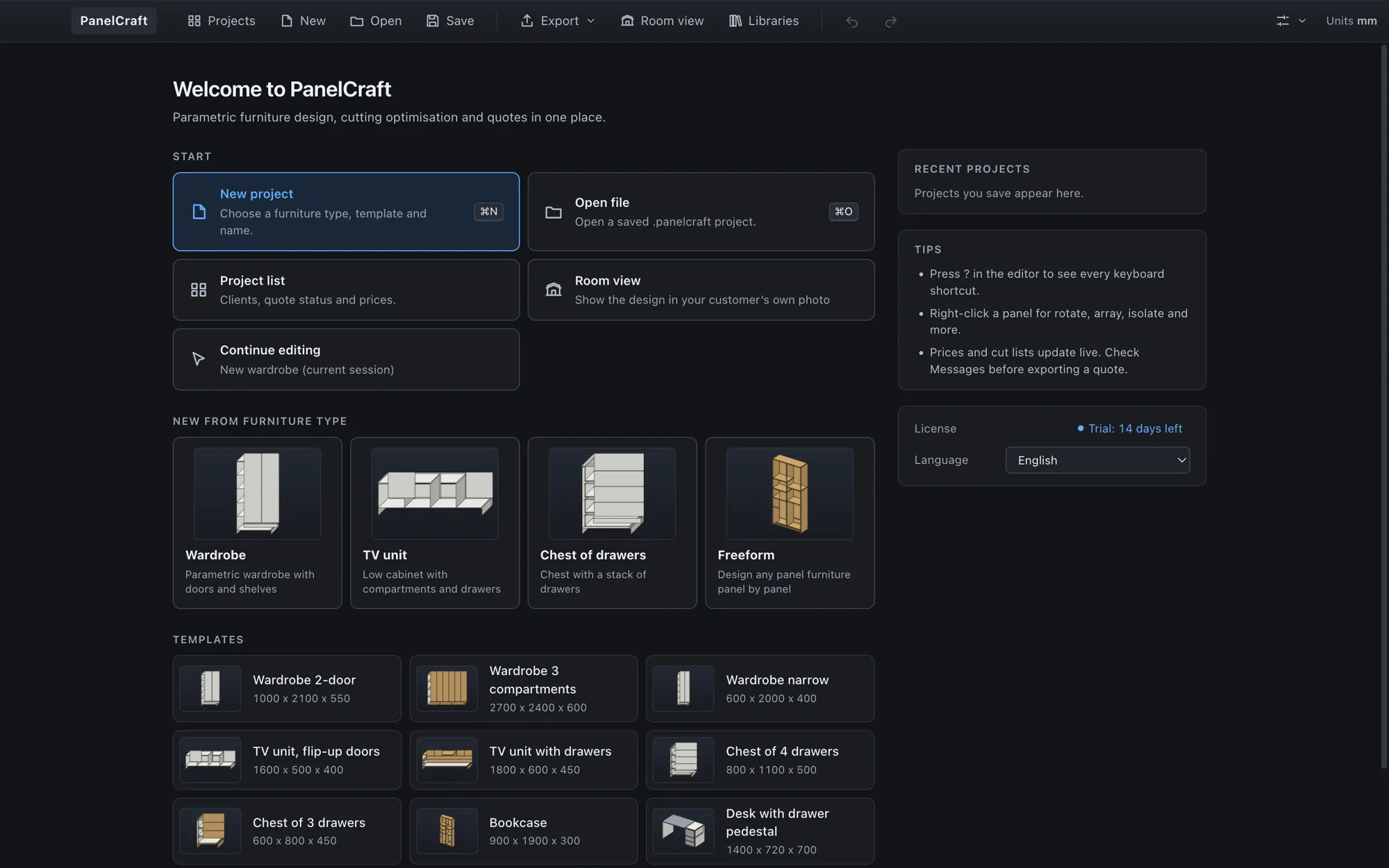
PanelCraft opens on the Start screen: New project, Open file, the project list, Continue editing, the four furniture kinds with live previews, templates, recent projects, tips, the language and the licence status. The brand button in the toolbar brings you back to it at any time.
Start a project
Choose New (Ctrl/Cmd+N). Pick the furniture type (Wardrobe, TV unit, Chest of drawers or Freeform), optionally a preset, and give it a name. Freeform / Blank starts empty. Projects are saved as .panelcraft files with Save, and opened with Open or by double-clicking the file.
The editor at a glance
- Left: the Design tab (project, build actions, materials, pricing and cutting settings) and the Outline tab (the element tree).
- Centre: the 3D view with the tool palette and camera buttons (Front, Side, Top, Iso), and the bottom panel with the tabs Parts, Cut layout, Drawings, Quote and Messages.
- Right: the Inspector for the selection.
- Status bar: the project name, the number of parts and sheets, the issue count and the live price.
Double-click the tab bar of the bottom panel, or use the maximise button (Ctrl/Cmd+Shift+J), to give it the whole centre area, which is the comfortable way to read the parts table or the cut layout on a small screen.
Drawing: parametric kinds
The parametric kinds are driven by a few dimensions. For a wardrobe you set width, height and depth, the plinth height, the number of compartments, shelves per compartment, shelf clearance and setback, door gap and overlay, and the back panel. The wardrobe has to be 300 to 6000 mm wide, 500 to 3000 mm high and 200 to 1000 mm deep, with up to twenty compartments, and the program tells you when an input cannot work.
A TV unit takes dimensions, a base (plinth or legs), compartments that are open or closed, a door style (hinged or flip-up), a drawer row, fronts and clearances, and a back with a cable hole. A chest of drawers takes dimensions, a base, the number of drawers and a relative height per drawer, and shows the real front height after scaling.
Already have a parametric design that needs a custom twist? Use Convert to freeform (edit freely) in the Project section. The conversion is one undo step and keeps parts, hardware, cut sheets and price identical.
Drawing: Freeform
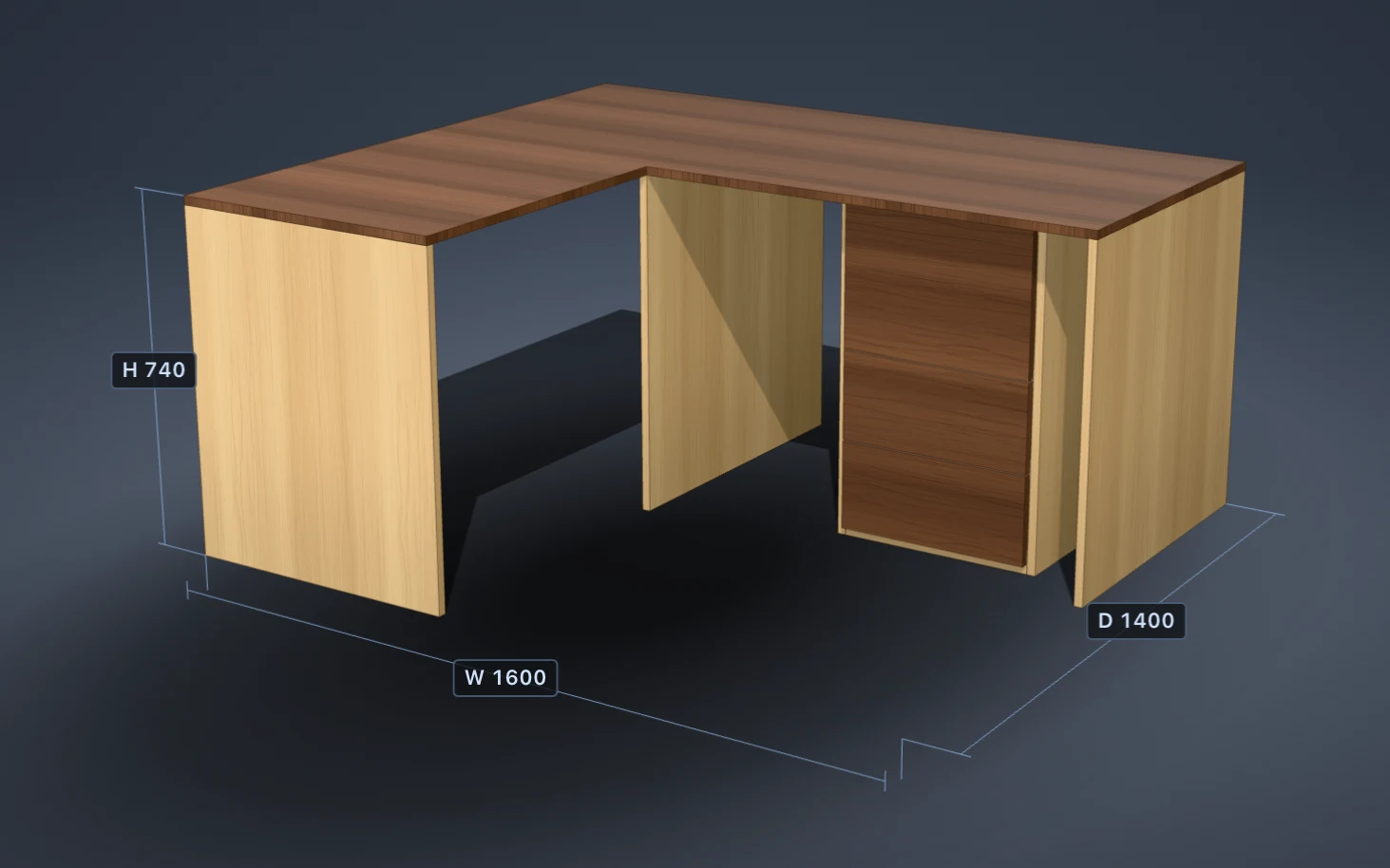
Freeform builds any furniture panel by panel. The tool palette is on the left of the 3D view. Press the key shown to switch tool.
| Tool | Key | How to use it |
|---|---|---|
| Select | V | Click selects; Shift or Cmd/Ctrl-click adds or removes; drag a box to select (left to right = fully inside, right to left = touching); double-click selects the group. |
| Move | M | Drag an arrow to move along X, Y or Z, or a square to move in a plane. A readout shows the distance. |
| Rotate | T | Drag the ring around the pivot. Angles snap to 15° and to other panels’ angles; Shift gives 1°. Drag the centre dot to move the pivot. |
| Resize | R | Drag the white edge handles of a panel, or a face of a multi-selection. |
| Add panel | P | Choose a work plane (floor, front, side) and click two opposite corners. Shift makes a square; Cmd/Ctrl locks one axis; Esc cancels. |
| Add here | A | Click an empty compartment, then add shelves, a split, a door, drawers, sliding doors, a rail, a back or a plinth. |
| Measure | D | Click two points. The distance and its X, Y, Z parts stay on screen. Esc clears. |
| Orbit | O | Left-drag orbits; Shift-drag pans. In every tool: right-drag or Alt-drag orbits, middle-drag pans, the wheel zooms. |
Snapping and nudging
Press G or the Snap button to toggle snapping to the grid (0, 1, 5, 10, 20 or 50 mm) and to faces and centres of other panels. Arrow keys move the selection 1 mm in X (left, right) and Y (up, down), Page Up and Page Down in Z; hold Shift for 10 mm.
The Inspector
With one panel selected the Inspector shows its name, role, material, position of the minimum corner, size, thickness axis, grain, edge banding (click the edges in the little diagram), holes, and its shape. With several panels it shows shared material, grain and banding, the selection box, and align and distribute. Array, Mirror, duplicate, group and delete are at the bottom. Locked panels cannot be edited; hidden panels vanish from the 3D view only and are still cut and priced.
Choosing boards, banding and hardware
Open Libraries from the toolbar. The Materials, Edge banding, Hardware and Offcut stock tabs hold the boards you buy with their sheet sizes and prices. Assign the carcass, back, fronts and drawer-box boards and the edge banding in the Materials section of the Design tab.
Give a board a look with a built-in decor or your own image; decors affect only the 3D and room views. See Materials and decors.
Hardware
Build > Suggest hardware lists connectors, hinges, handles, slides and legs with the reason for each. Tick what you want and apply. Add hardware adds any library item by hand. Tracks and rails are sold by the metre and take decimals.
Reading the cut layout
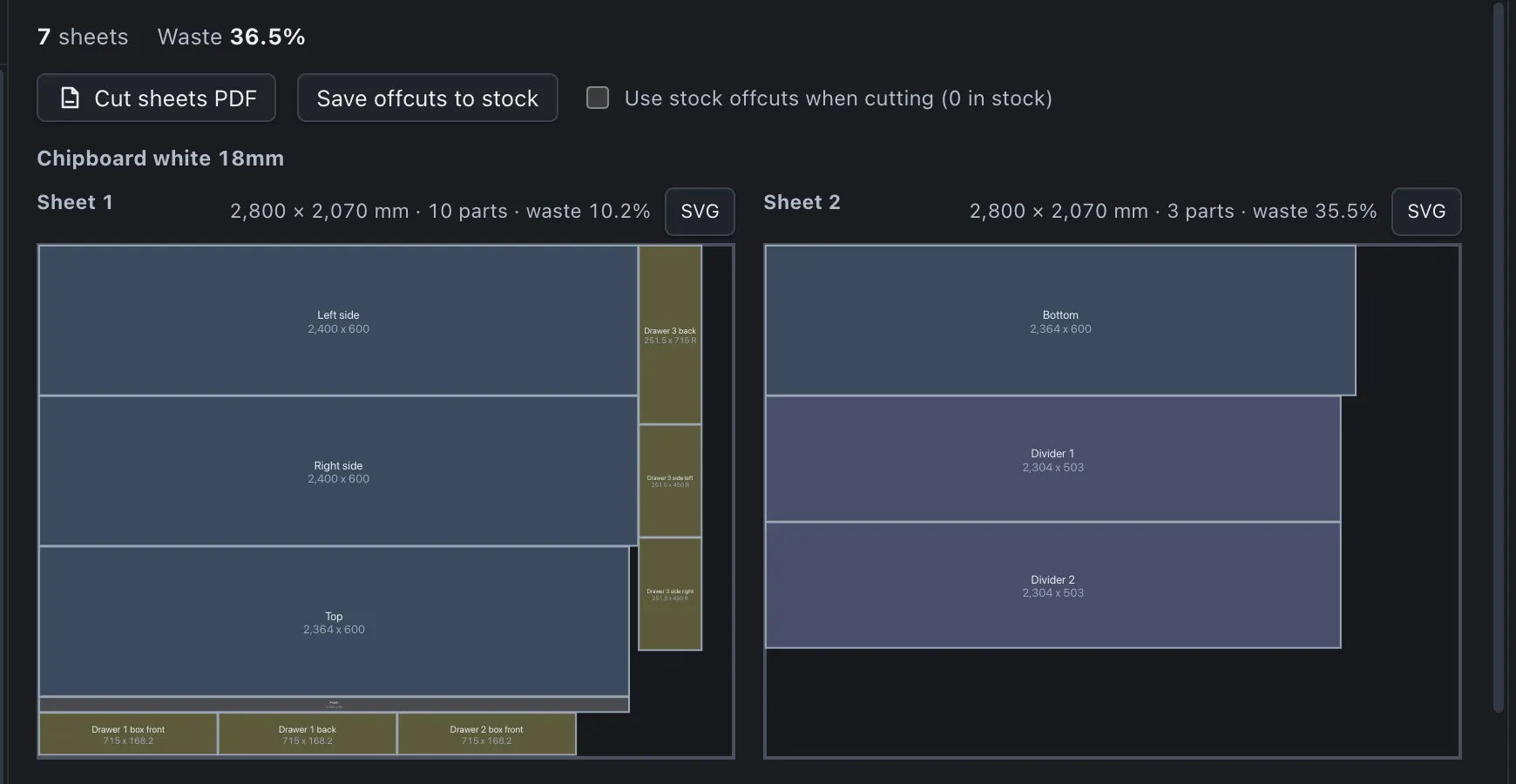
Open the Cut layout tab. It lists the number of sheets and the waste, then each board with its sheets: size, part count and waste per sheet, and every part drawn to scale with name and dimensions. R marks a turned part.
Settings live in the Cutting section of the Design tab: saw kerf (3.2 mm default), sheet trim (10 mm) and minimum offcut (100 mm). Use Save offcuts to stock to keep the leftovers and tick Use stock offcuts when cutting to use them first next time. Cut sheets PDF and the per-sheet SVG buttons export the layout.
Layouts update as you edit; the computation runs in the background and the status bar shows Estimate until it has finished and Exact afterwards. See Cutting and nesting.
Pricing and quoting
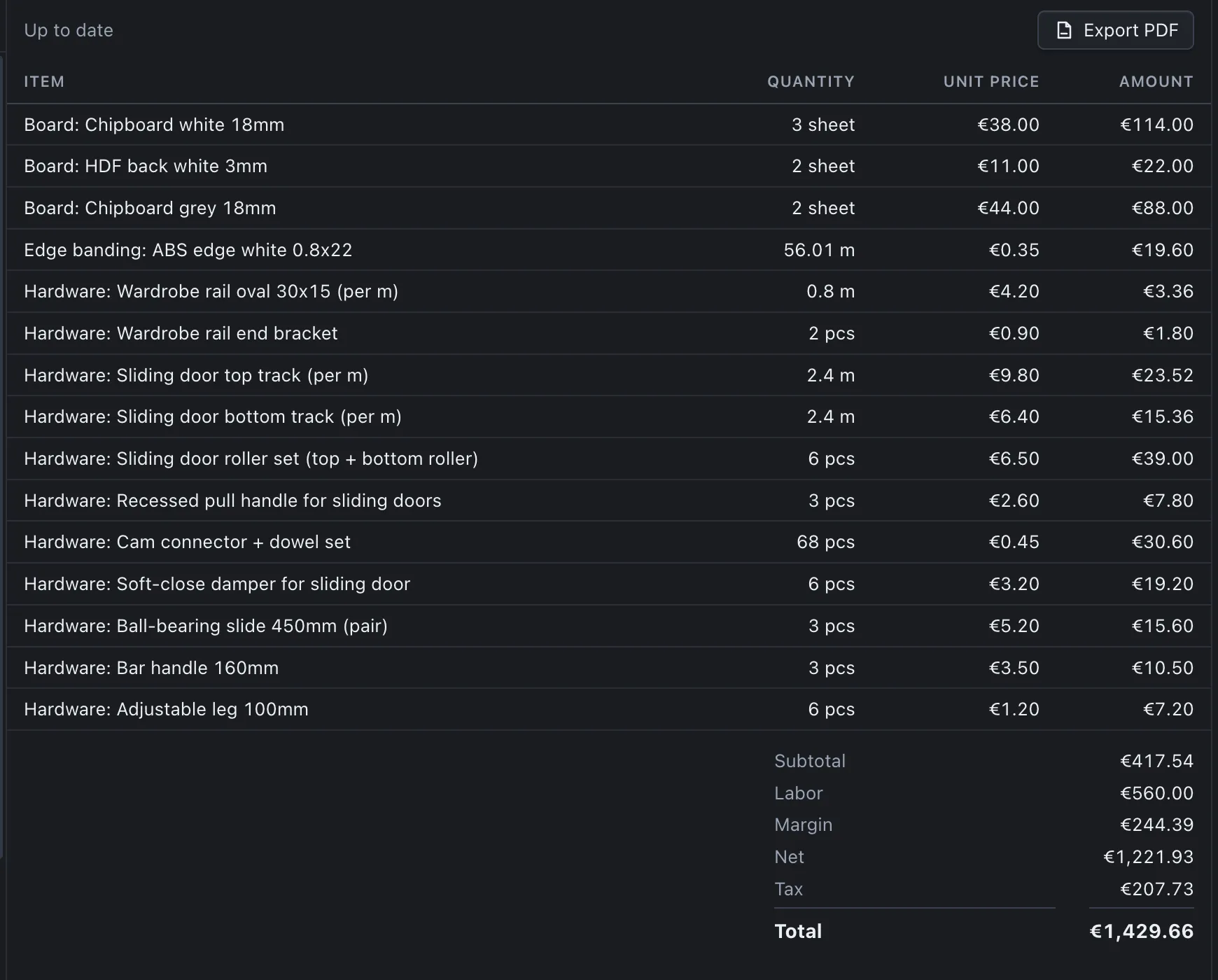
The Pricing section holds labour hours and rate, margin, tax and the waste allowance used by the estimate. The Quote tab lists the priced lines and the totals, and Export PDF writes the quote. The status bar chip shows the live price; click it for the breakdown.
To update prices, open Libraries > Import price list, choose the target (boards, edge banding or hardware) and the CSV, map the columns, read the preview and apply only when it looks right. Numbers that could be read two ways are rejected, not guessed. See Pricing and quotes.
The Projects view keeps clients, quote numbers, validity and status; a quote you mark as sent keeps its lines and total.
Exports, packs and machining files
The Export menu offers the quote PDF, the cut list and parts list as CSV, the cut layout as DXF, panel labels, drawings, the assembly sheet, the Workshop pack (eight files in one dated folder), the Client pack, and on Studio the Machining DXF and Machining CSV. Room view exports are in the same menu.
In the Drawings tab choose Front, Side or Plan, toggle Doors, and export SVG, the drawings PDF or the assembly sheet. The machining dialog shows a summary of operations before it writes anything. See Documents and drawings and Machining export.
Languages
The interface comes in English, Bosnian/Croatian/Serbian, German, French, Italian and Spanish. The interface language and the document language (quote, labels, drawings and assembly sheet) are set separately in the settings menu; the document language defaults to the same as the app. The native menu and dialogs follow the interface language.
Numbers and dates follow the language: a decimal comma everywhere except English, day-first dates, and prices with a no-break space before the euro sign. Typed numbers and CSV imports accept both separators.
Keyboard shortcuts
| Action | Shortcut |
|---|---|
| New project | Ctrl/Cmd+N |
| Undo / Redo | Ctrl/Cmd+Z, Shift+Z |
| Select all | Ctrl/Cmd+A |
| Duplicate / Copy / Paste | Ctrl/Cmd+D, C, V |
| Duplicate with a count and step | Ctrl/Cmd+Shift+D |
| Isolate selection | Alt+I |
| Group / Ungroup | Ctrl/Cmd+G, Shift+G |
| Hide selected / Show all | H, Alt+H |
| Delete | Delete |
| Cancel or deselect | Esc |
| Fit the model | F |
| Front, Side, Top, Iso | 1, 2, 3, 4 |
| Toggle snapping | G |
| Show every shortcut | ? |
| Collapse the bottom panel | Ctrl/Cmd+J |
Habits that save time
- Start from the closest preset or template and edit; converting to freeform is one undo step.
- Check the Messages tab before exporting a quote. Click a message to select the panels concerned.
- Keep your boards and prices in the libraries current, and import supplier lists as CSV with the preview.
- Save offcuts after each job and tick the stock option on the next one.
- Right-click a panel for duplicate, copy and paste, group, hide, lock, set material, isolate and add-here.
The program in pictures
Follow the guide with a real job
Download PanelCraft for Windows or macOS and run a real job through it, from drawing to quote. The 14-day trial includes every Studio feature.
Questions first? Write to hello@panelcraft.store or see the FAQ.