Design any panel furniture, not only presets
Included in every plan: Basic, Pro and Studio.
PanelCraft is cabinet design software for workshops that build one-off pieces. Start from a parametric wardrobe, TV unit or chest of drawers, or build a piece panel by panel in Freeform. Every panel you draw is a real part that is cut, priced and drawn.
Two ways to start a project
The New project dialog offers four kinds of furniture. Wardrobe, TV unit and chest of drawers are parametric: a handful of dimensions and choices produce the whole piece, which is the quickest way to a first cut list. Freeform starts from an empty space and lets you build any panel furniture, the way a cabinet CAD tool does.
Neither way is a dead end. A parametric design converts to freeform with Convert to freeform (edit freely): every part becomes one panel, and the parts, hardware, cut sheets and price stay identical. The conversion is one undo step, so you can take a standard wardrobe and give it a custom niche without redrawing it.
Every kind produces the same outputs: parts list, cut layout, quote, drawings, assembly sheet and exports. Presets are only starting points; nothing in the program is restricted to them.
| Kind | Driven by | Typical use |
|---|---|---|
| Wardrobe | Width, height, depth, compartments, shelves per compartment, plinth, doors, back | Fitted and free-standing wardrobes, sliding-door wardrobes |
| TV unit | Dimensions, base (plinth or legs), compartments (open or closed), flip-up or hinged doors, drawer row | Low units and media furniture |
| Chest of drawers | Dimensions, base, number of drawers and a relative height for each | Chests, bedside and storage drawers |
| Freeform | Panels placed and edited one by one | Desks, bookcases, corner units, anything else |
Freeform: panel by panel
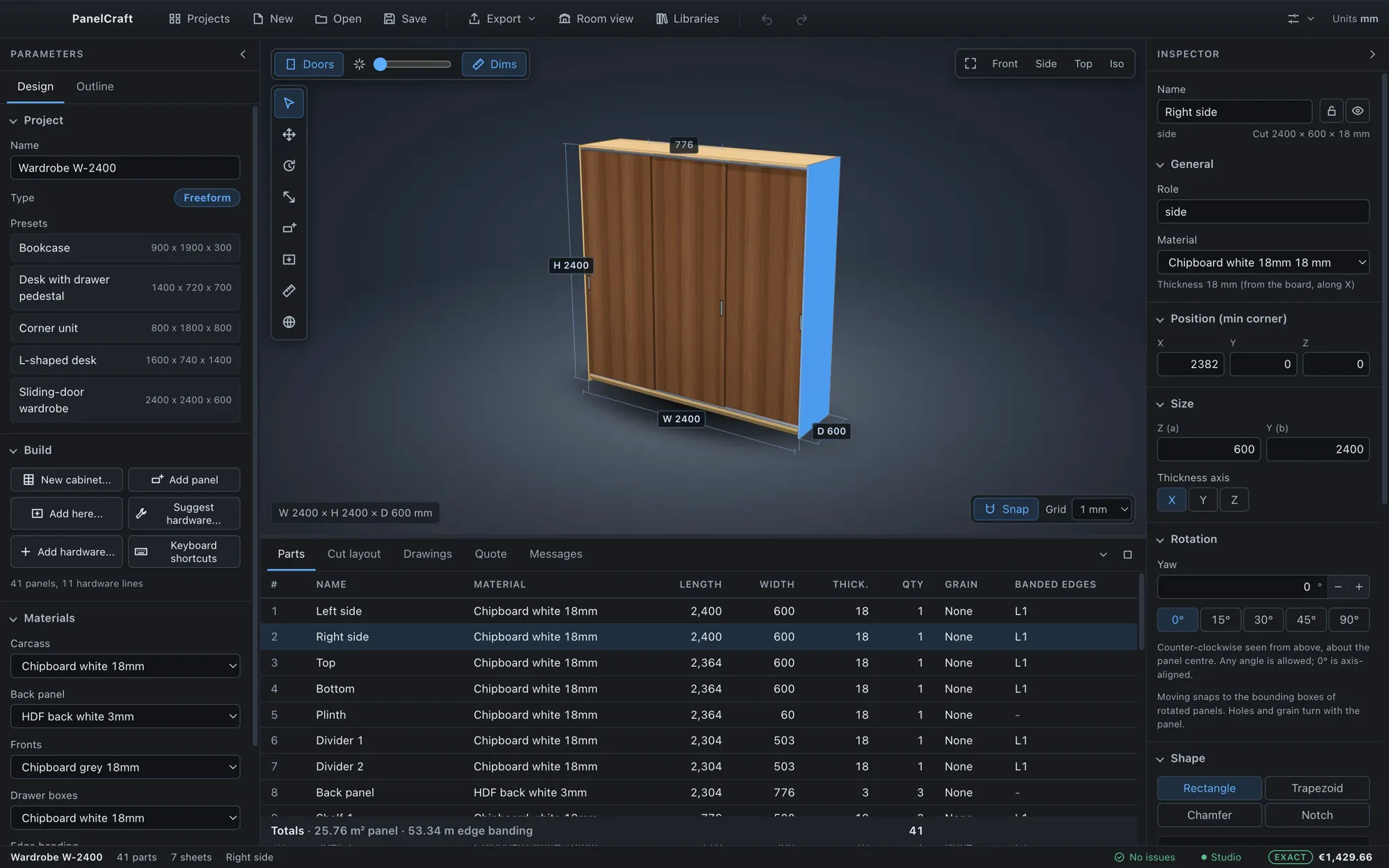
The Freeform workspace has a Design tab for the project, build actions and materials, an Outline tab with the element tree, a 3D view with a tool palette in the centre and an Inspector on the right. Both side panels collapse when you need the space.
Panels snap to a grid you choose (1, 5, 10, 20 or 50 mm, or none) and to the faces and centres of other panels. Magenta outlines show what you are aligned to, and nothing changes while you drag: releasing the mouse creates exactly one undo step.
Live collision feedback tints colliding panels red while you drag or resize, shows the overlapping volume and counts the collisions in the readout. Touching faces and genuine grooves are not collisions. Arrow keys nudge the selection by 1 mm; Shift makes it 10 mm.
| Tool | Key | What it does |
|---|---|---|
| Select | V | Click, Shift-click or box-select; left to right selects what is fully inside, right to left what it touches. |
| Move | M | Gizmo arrows and planes with a live distance readout. |
| Rotate | T | Turn about the vertical axis in 15° steps; Shift gives 1°. |
| Resize | R | Edge handles on one panel, or faces of a multi-selection. |
| Add panel | P | Choose a work plane, click two corners. |
| Add here | A | Fill an empty compartment with shelves, doors, drawers and more. |
| Measure | D | Two clicks give a distance with its X, Y and Z parts. |
Shapes, rotation, arrays and mirrors
Furniture is rarely all rectangles. Any panel can be rotated about the vertical axis by an exact angle (chips for 0, 15, 30, 45 and 90 degrees, or any value you type), and several panels turn rigidly about the selection centre. The Rotate tool snaps to the angle of other rotated panels and shows parallel and perpendicular lines.
The Shape section of the Inspector offers rectangle, trapezoid, chamfer and notch outlines, with a live 2D drawing that shows the true length of every edge. Edge banding is priced on those true lengths. A shaped part is cut from its bounding rectangle: the cut-away corners are waste, they are priced, and the cut layout draws the outline inside the hatched rectangle.
Array repeats panels along a direction and can turn each copy by a yaw step, which builds a ring of panels. Mirror copies across a plane. Both stay live while you edit the source, and Bake turns them into ordinary panels when you are done.
Doors, drawers and sliding doors
Empty compartments are outlined in the 3D view. Choose Add here, click a compartment, and add shelves, a vertical split, a door (hinged left or right, a pair, flip-up or flip-down) or drawers. Further down the same card you find sliding doors, a hanging rail, a back panel and a plinth.
Sliding doors open a form with two, three or four doors, the overlap of neighbouring doors, top and bottom track heights, the depth step between lanes, side reveals, handles and soft close. While the form is open the 3D view shows a translucent preview of the doors and tracks, and the card lists the resulting door width, lanes and track length in metres, with a warning or the reason the doors cannot be added. Nothing enters the model until you press Add sliding doors.
The hanging rail asks for its height above the floor and a centre support, and warns when a rail longer than one metre has no support. A plinth needs the cabinet to stand at least 30 mm above the floor; a back panel goes at the rear of the compartment.
- Door styles
- Hinged left, hinged right, pair, flip-up, flip-down, sliding (2, 3 or 4 doors).
- Sliding parameters
- Overlap, top and bottom track height, lane offset, side reveal, recessed pulls, soft close.
- Tracks and rails
- Sold by the metre: quantities take decimals (2.4 m) on the quote.
- Hinge side
- Set per door in the Inspector; the handle is drawn on the opposite side.
Cabinets, corners and L-shaped desks
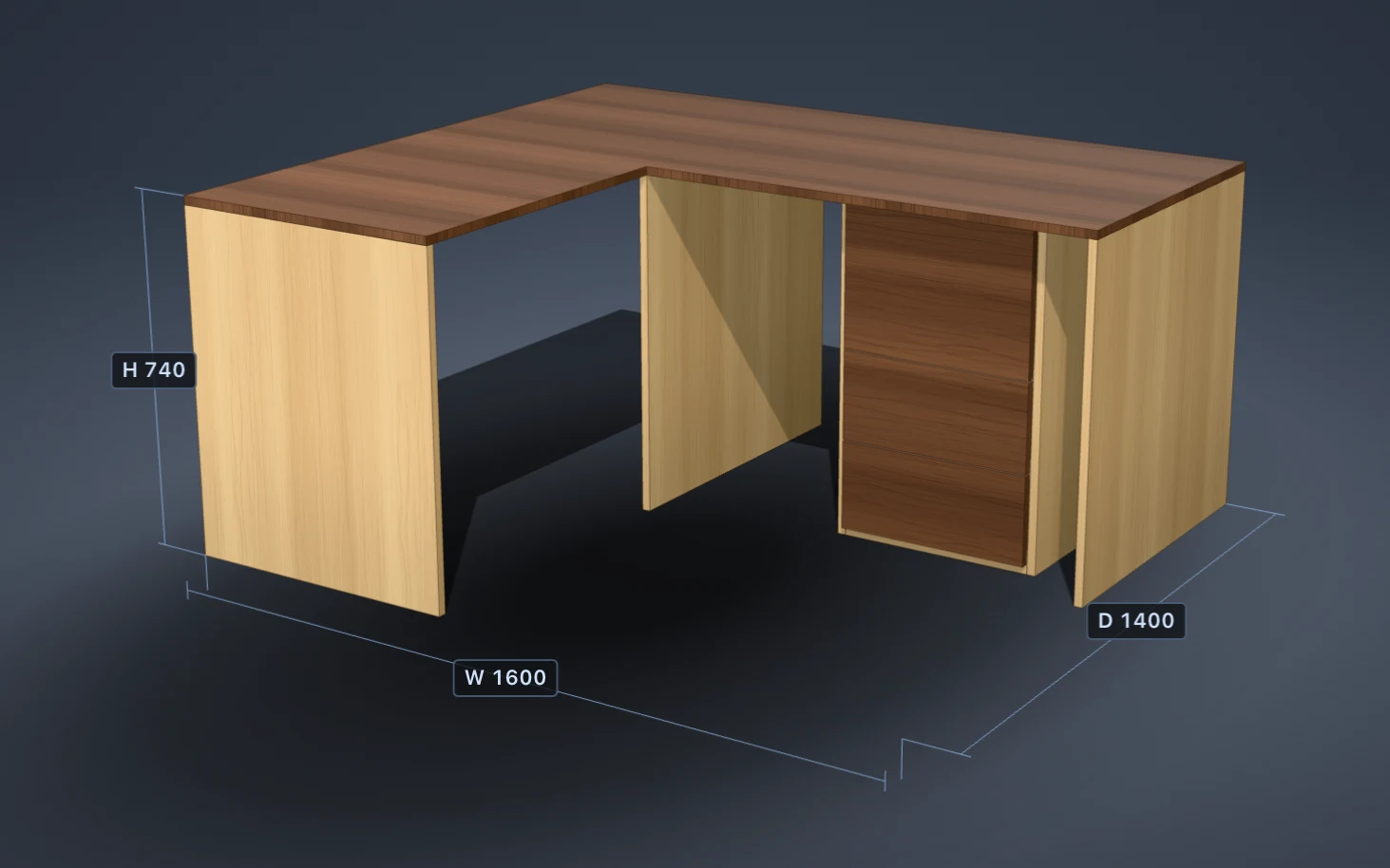
Build > New cabinet has three tabs. A straight cabinet takes width, height, depth, plinth, back panel and materials and creates sides, top, bottom, optional plinth and back as ordinary panels that you can edit afterwards. A corner unit builds an L-shaped cabinet from two leg lengths and depths, a height, shelves, an open front and an optional yaw, with L-shaped top, bottom and shelves cut as notched boards.
The L-shaped desk is one L-shaped top on three support panels. Each tab shows an isometric view and a plan drawn from the derived parts, and explains impossible dimensions before you can create them, so you never get an invalid piece.
Five freeform presets are included to learn from or to start with: a bookcase, a desk with a drawer pedestal, a corner unit, an L-shaped desk and a sliding-door wardrobe. The start screen also lists templates such as a two-door wardrobe, a narrow wardrobe, TV units with flip-up doors or drawers, and chests of three or four drawers.

Hardware suggested, not assumed
Build > Suggest hardware lists connectors, hinges, handles, drawer slides and legs, each with the reason for it. You tick what you want and apply it; nothing is added automatically, and existing hardware is not subtracted from the suggestions.
The rules are the ones a workshop uses. Hinges per door follow the door height: two up to 900 mm, three up to 1600 mm, four up to 2000 mm and five above. Cam connectors follow the contact length between panels. Drawer slides follow the drawer length, and legs follow the width of the cabinet.
Add hardware adds any item from your library by hand. Items that are sold by length, such as tracks and rails, take decimal quantities and print their unit on the quote.
| Door height | Hinges |
|---|---|
| up to 900 mm | 2 |
| up to 1600 mm | 3 |
| up to 2000 mm | 4 |
| above 2000 mm | 5 |
Checks while you draw
Collisions are marked red and floating or oversized panels amber, both in the 3D view and in the Outline. The Messages tab lists every problem in plain words, using panel names and never internal ids, and clicking a message selects the panels concerned. The status bar counts issues, and the quote warns when the numbers are incomplete.
Parametric kinds check their inputs before they build anything. A wardrobe has to be between 300 and 6000 mm wide, 500 and 3000 mm high and 200 and 1000 mm deep, with one to twenty compartments, and the plinth, gaps and shelf setbacks have to fit inside the carcass. Warnings flag shelves longer than 800 mm, doors wider than 600 mm or taller than 2400 mm, and edge tape narrower than the board it covers.
When a back panel is larger than the sheet you buy, PanelCraft splits it into the fewest vertical strips that fit, aligned to the dividers where possible, and tells you it did so.
- Collision
- Overlap on every axis and more than 1 mm³ of volume. Touching faces and genuine grooves are fine.
- Floating
- Panels not supported by anything are flagged amber.
- Hidden and locked
- Hidden panels disappear from 3D only; they are still cut and priced. Locked panels cannot be edited.
- Isolate
- Alt+I shows only the selection while you work inside a busy model.
Everything follows the design
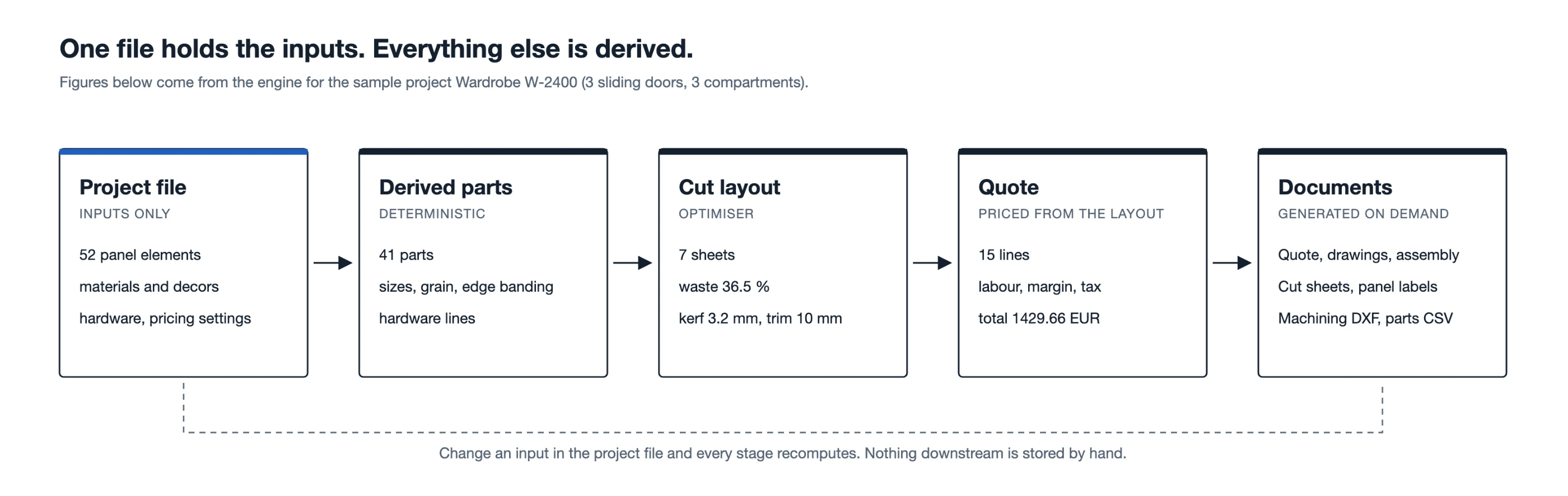
The project file stores only your inputs: panels, boards, positions and choices. Parts, 3D model, cut layout, price, drawings and assembly steps are derived from them by pure functions, so a free-form design never breaks the cut list or the quote.
The editor stays responsive while this happens. The cut optimiser runs in a background worker and is only rescheduled when something that affects it changes; pricing-only edits recompute just the quote. A static 3D scene is merged per material, which keeps 300 mixed panels above 60 frames per second on a Mac, and a typical wardrobe is derived in a fraction of a millisecond.
Undo and redo cover every edit. Projects are saved as .panelcraft files that you own, and older wardrobe files still open.
Design your next piece in PanelCraft
Download PanelCraft for Windows or macOS and run a real job through it, from drawing to quote. The 14-day trial includes every Studio feature.
Questions first? Write to hello@panelcraft.store or see the FAQ.