Cut list optimizer with kerf, trim and grain
Included in every plan: Basic, Pro and Studio.
PanelCraft nests every part of your design on full sheets of board, respecting the saw kerf, the edge trim and the grain direction. The layouts are guillotine layouts that a panel saw can cut edge to edge, and they update as you edit.
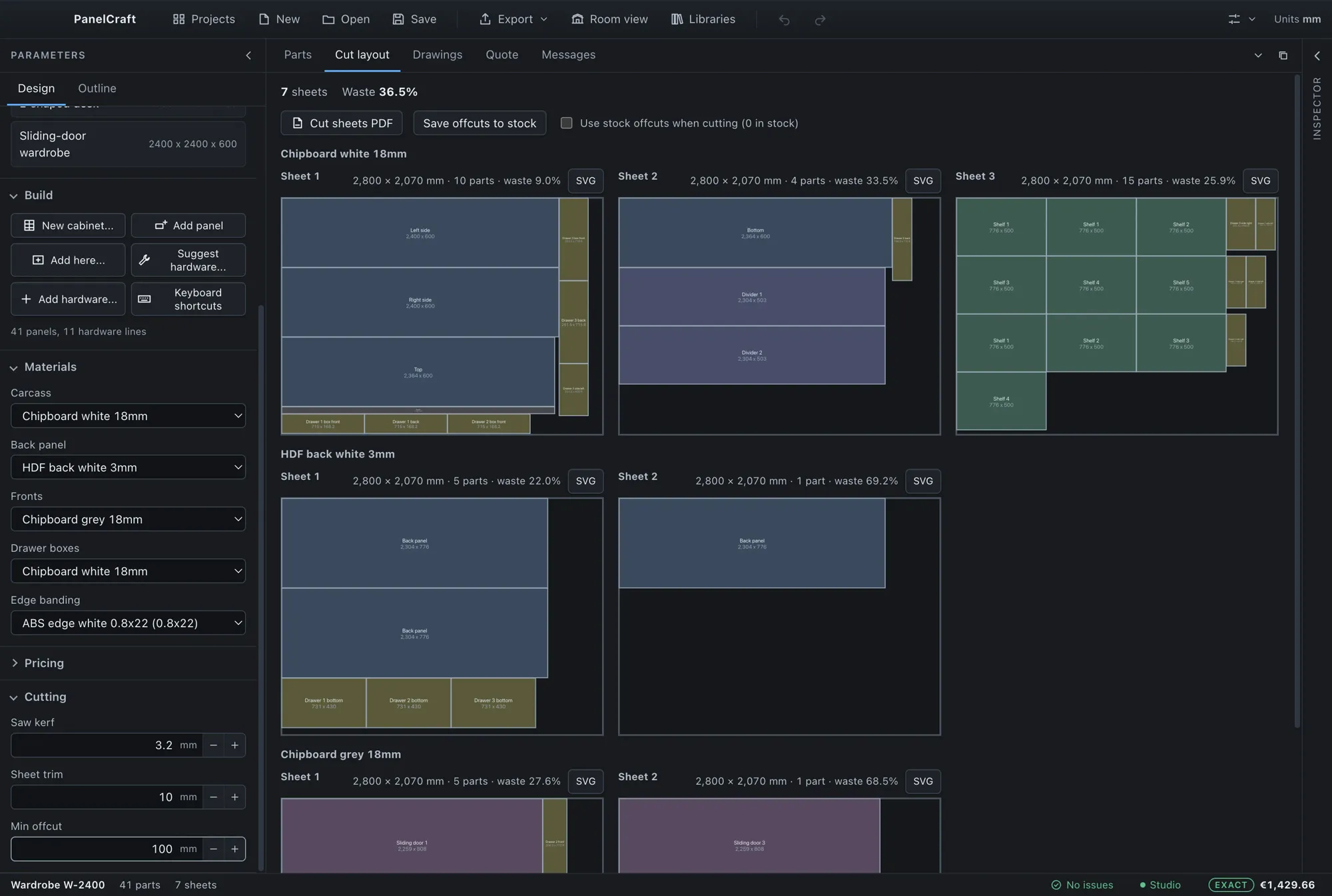
A layout you can cut
Parts are grouped by board material and expanded to one instance per physical piece, then laid out on sheets of that board. For each sheet the Cut layout tab shows its size, the number of parts, and the waste, and every part is drawn to scale with its name and dimensions. A letter R marks a part that has been turned 90 degrees.
The packer is a guillotine free-rectangle packer, which is the family of algorithms that matches how a panel saw works: every cut runs from one edge of a piece to the opposite edge. A correct layout that wastes a few percent is worth more in the shop than a clever one that cannot be sawn, so that is the rule the optimiser follows.
The optimiser is pure and deterministic. The same design, settings and stock always produce the same layout, which makes the result easy to check and safe to rerun.
- Unit of work
- One layout per board material, one sheet after another, filled before a new sheet is opened.
- Placement
- Absolute sheet coordinates that include the trim; the kerf sits between neighbouring parts.
- Waste
- Sheet area minus used area, shown per sheet and over all sheets of a material.
- Unplaced parts
- Reported with a reason: unknown board, invalid size, larger than the usable sheet, grain prevents placement, too many instances.
Kerf, trim and grain are inputs
Saw kerf defaults to 3.2 mm and sheet trim to 10 mm; both are set per project in the Cutting section. The usable area of a sheet is the sheet minus the trim on each edge, and parts are separated by exactly one kerf. Where a part meets a trimmed sheet edge there is no kerf gap, so you do not lose material to a cut that is never made.
Grain is respected when both board and part have it. If the sheet grain and the part grain are both set, the orientation is fixed, and a part that needs a vertical grain cannot be turned. If either has no grain, the optimiser may rotate the part to pack better. The cut sheets show grain arrows so the saw operator sees the direction.
Minimum offcut (default 100 mm) decides which leftovers count as reusable stock rather than waste.
| Setting | Default | Effect |
|---|---|---|
| Saw kerf | 3.2 mm | Gap between neighbouring parts on a sheet. |
| Sheet trim | 10 mm | Unusable strip on every edge of a purchased sheet. |
| Minimum offcut | 100 mm | Both sides of a leftover must reach this to be offered as stock. |
| Sheet size | 2800 × 2070 mm | Per board in the library; alternates can be added. |
How the search works
The optimiser does not settle for one pass. It runs a set of variants and keeps the best: five part orderings, with rotation allowed or not, two rules for splitting the free space and two fit scores (best short side or best area). Every variant is a complete layout.
The best layout has the fewest unplaced parts, then the fewest sheets, then the most concentrated used area, which means the largest reusable offcut. Work is limited by an operation budget rather than by wall-clock time, so the result does not depend on how fast your computer is, and the first variant always completes.
A part quantity can be large, and the optimiser handles up to 20,000 part instances per run. A part whose quantity would push the total over that cap is refused whole and reported, never partially placed, so a mistyped quantity cannot freeze the program.
| Dimension | Options |
|---|---|
| Part ordering | Five orderings of the parts |
| Rotation | Allowed or not (where grain permits) |
| Split rule | Two rules for dividing the free rectangle |
| Fit score | Best short side fit, best area fit |
Offcut stock: use what you already own
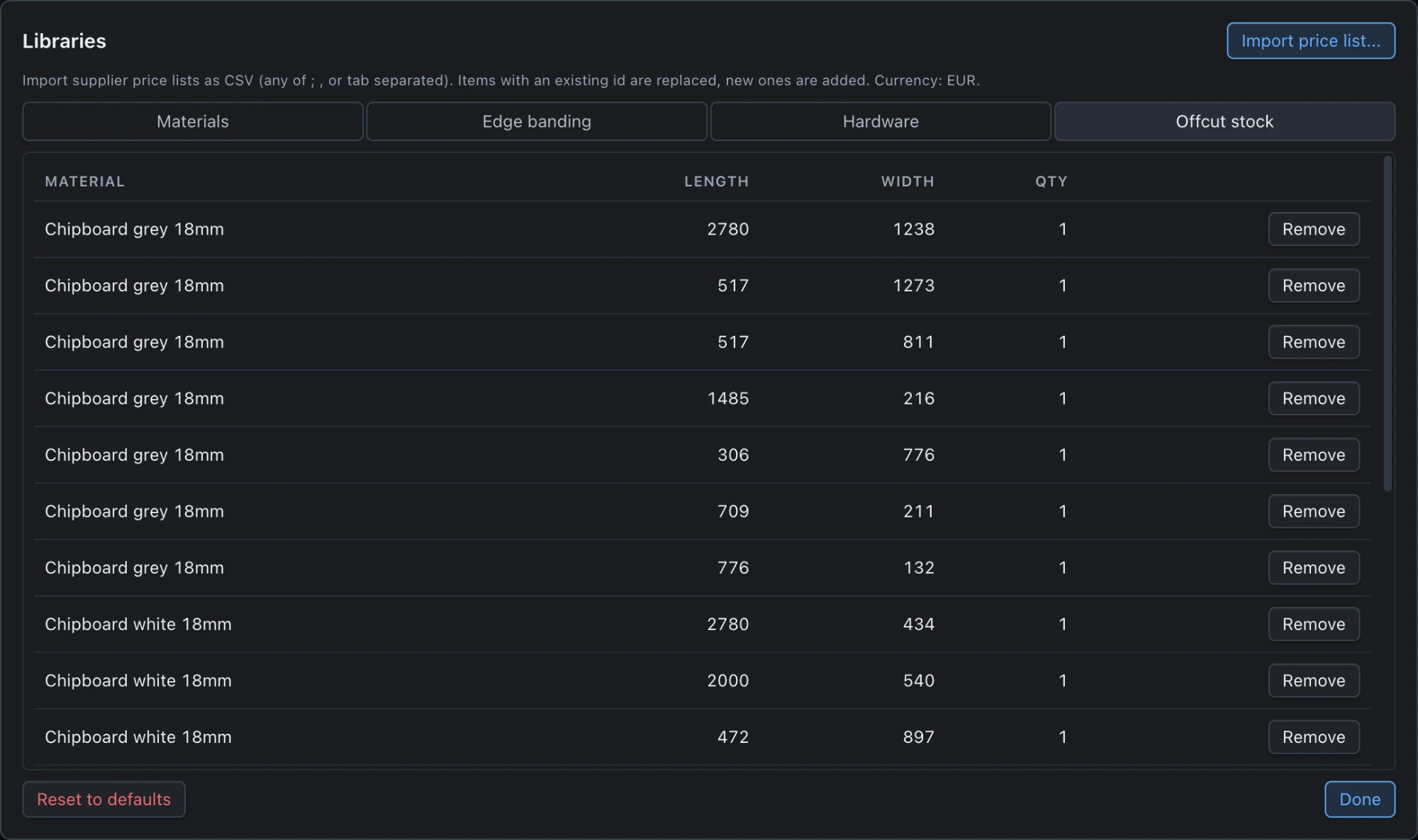
After a cut, Save offcuts to stock records the reusable rectangles left on each sheet. They are computed from the free space of the sheet minus trim and minus every placed part grown by the kerf, so they never overlap a placement and stay inside the trimmed sheet.
Tick Use stock offcuts when cutting and the next job opens those pieces first, at zero cost, before it opens a new sheet. Pieces used are consumed from the ledger and the new offcuts are added, so the stock list always matches the shop. The ledger lives in the Libraries dialog under Offcut stock, with board, length, width and quantity per piece, and it can be edited by hand.
Stock pieces are assumed to have the same grain orientation as the sheet of the same material, with length along the sheet length.
Alternate sheet sizes, cost-aware
A board can be bought in more than one size. Add alternate sheet sizes with their own prices, for example 2440 × 1220 mm at a lower price per sheet, and the optimiser runs the full search once for each purchasable size.
Among sizes that place every part, the cheapest total purchase wins, then the fewest purchased sheets, then the most concentrated used area. One size is used per material per job, which keeps the order simple.
A single part that is larger than every purchasable sheet cannot be placed. PanelCraft avoids this for back panels by splitting them into strips that fit, and warns you about anything else it cannot place.
- Primary size
- 2800 × 2070 mm in the bundled library; yours in your library.
- Alternates
- Listed in the board record and in the boards CSV, written as 2440x1220@30|...
- Choice
- Lowest total purchase cost among sizes that place every part.
Cut sheets, labels and CSV
Every sheet can be exported as a vector drawing. The cut sheet is one sheet per A3 page at true scale, with the sheet outline, the dashed trim line, each part with its id and size, grain arrows, and a title block that records kerf, trim and utilisation. The kerf is visible as the real gap between parts.
Cut sheets PDF, a per-sheet SVG, a cut list CSV and panel labels (one label per physical panel, with name, dimensions, material and banded edges) are available from the Export menu. The workshop pack writes them together with the drawings and the machining files.
Text cells in the CSV files that begin with characters a spreadsheet would treat as a formula are neutralised, so opening the cut list in a spreadsheet is safe.

Edge banding follows the geometry
Every part knows which of its four edges are banded. The metres of tape are the sum of the true edge lengths times the quantity, plus a 5 % allowance, and each banding type is priced on its own quote line. Shaped parts use the true length of the shaped edges, not the bounding rectangle.
The parts table lists banded edges per part (L1, L2 along the length, W1, W2 across it), and the label for each panel prints them, so the person at the edge bander does not have to guess.
- Edge naming
- L1 and L2 run along the part length, W1 and W2 across it.
- Allowance
- 5 % on top of the true edge lengths, rounded to two decimals.
- Warnings
- A tape narrower than the board it covers is flagged for every edge.
Fast enough to run on every edit
The optimiser runs in a background worker, and the editor stays responsive. Measured on a Mac with synthetic parts, 150 parts on one material take about 10 ms, 600 parts about 40 ms and 2,000 parts about 90 ms, and a 95-part wardrobe about a millisecond and a half. Results are identical to earlier versions, byte for byte.
A cut is only rescheduled when something that affects it changes: edits to prices recompute just the quote. A run that is still in flight when you change the design is cancelled, so the layout you see always belongs to the design you have.
| Case | Median time |
|---|---|
| 150 parts, 1 material | 9.7 ms |
| 600 parts, 1 material | 40.8 ms |
| 2,000 parts, 1 material | 90 ms |
| Wardrobe, 95 parts | 1.4 ms |
The program in pictures
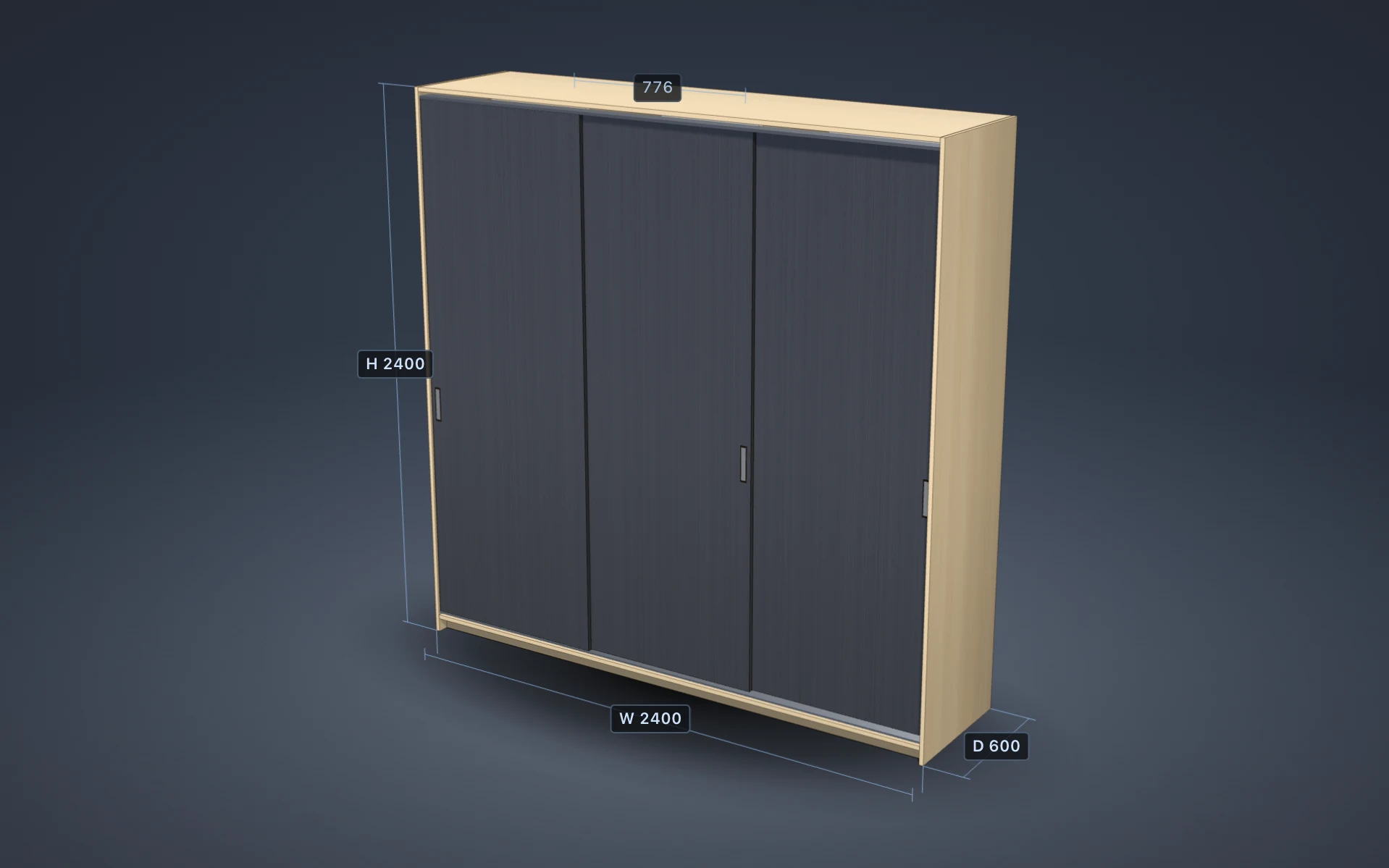
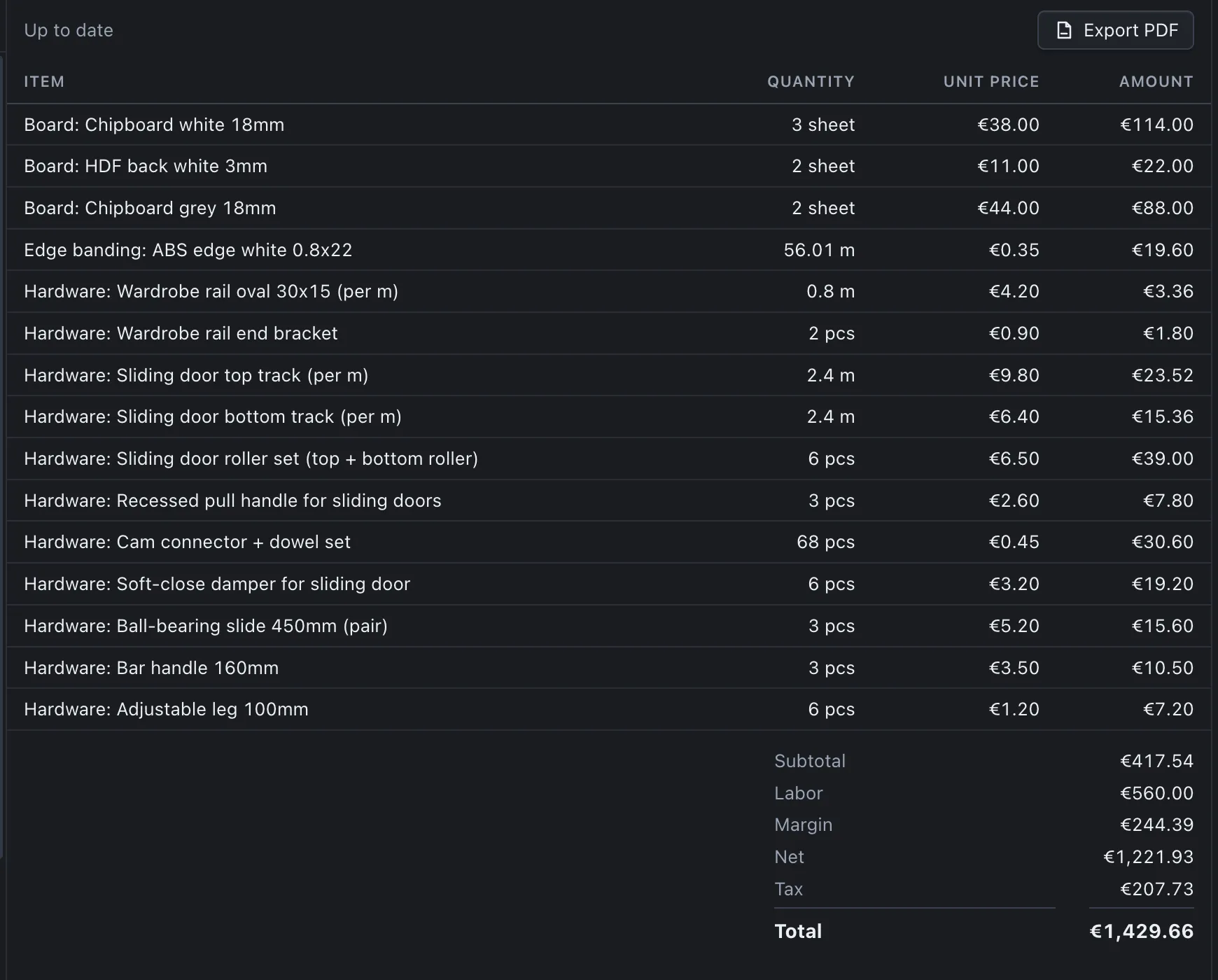


Cut your next job with less waste
Download PanelCraft for Windows or macOS and run a real job through it, from drawing to quote. The 14-day trial includes every Studio feature.
Questions first? Write to hello@panelcraft.store or see the FAQ.